-
Created by
 European Dynamics Trans Contractor, last updated on Apr 16, 2026
3 minute read
European Dynamics Trans Contractor, last updated on Apr 16, 2026
3 minute read
Navigate to Management Console > System Interface Management > Search System User.
The application will present a search form with two sections named "Add System User" and "Search System User" which are used to add new System User and search an existing System User.
Navigate to the Add System Section, insert a valid System User Id and click Add button.
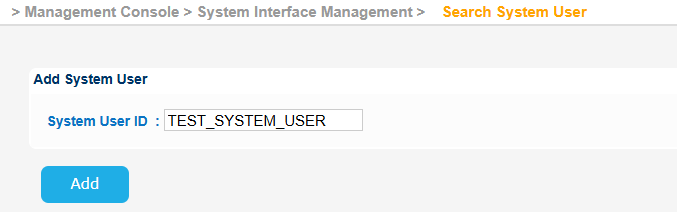
The system will contact IDM UserInfo Service in order to check if the provided System User ID is indeed valid.
If it is the system will create the relevant user on EIS.
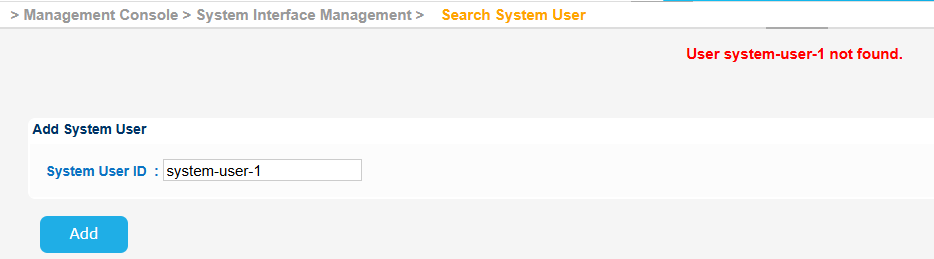
If the provided user id is not valid the system will generate an error message similar to the following:
In order to update an existing system user navigate to the "Search System User" section which contains the related search criteria.
Fill in any of them, should you need to narrow down the results, and click on the Filter button.
The system will present the list of System Users that meet the search criteria ("Starts with" pattern for the System User ID field):
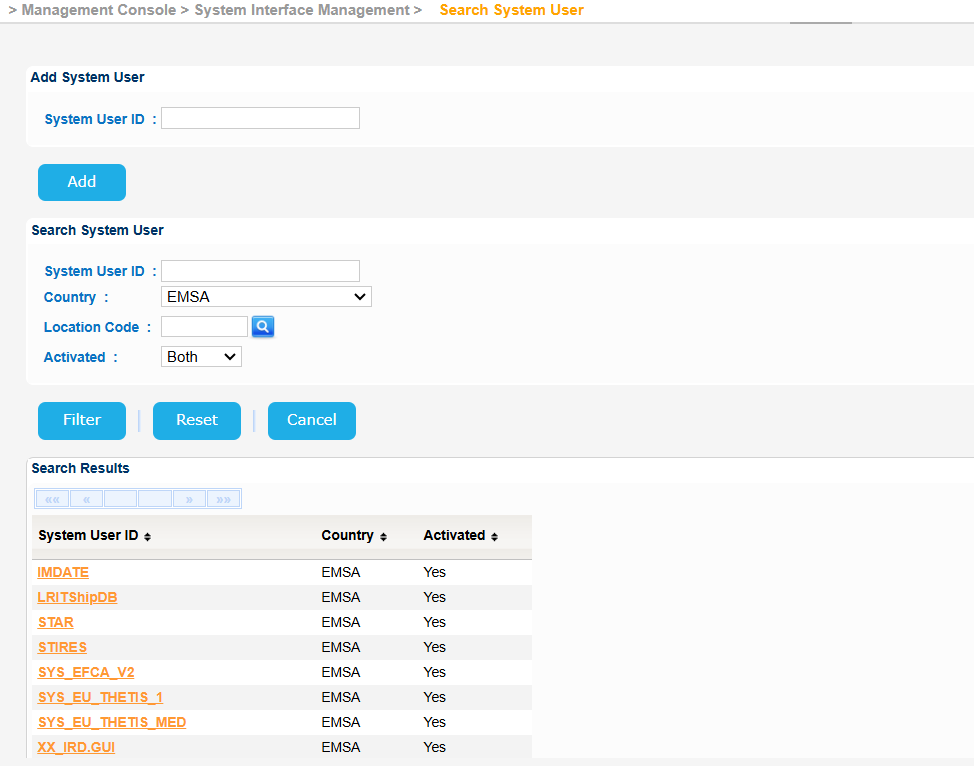
Select a System User and click on the System User ID link.
The application will present a new screen with the System User Details which include the associated Roles and the list of Interfaces that the user can use.
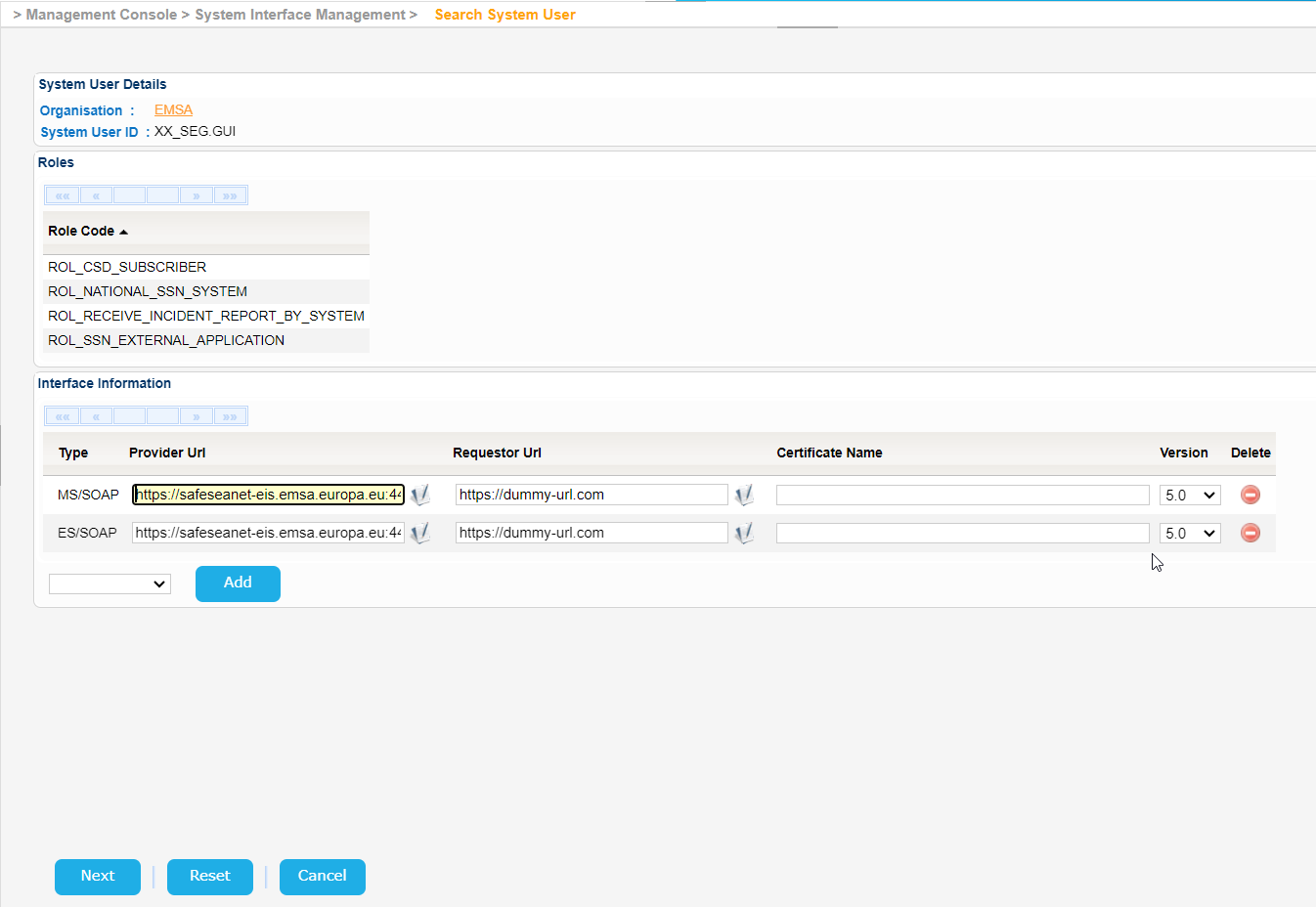
The Interface Information section includes, among others, the Type column which may contain any of the following values:
- MS/SOAP
- MS/XML
- ES/SOAP
The combination of values of the Type jointly define whether the System User has access to a service of a Member State (MS) or an External System (ES) and whether the message exchanged is SOAP or XML based.
So a System User with access to e.g an MS/SOAP type service means that it can consume an MS service which sends SOAP messages.
Modify any of the available values (the Provider URL and Requestor URL values need to end with the / character for the application to properly construct the URLs where to get/send the requests/responses).
In order to add a new interface click on Add button.
Note that by default the version of the interface is set to 4.0 but you may change it to v5.0
System users cannot be assigned to Web Interfaces.
In order to remove an already assigned System Interface click on the red icon under Delete column.
Once done with the change click on Next button.
The application will present a new screen where you can preview the changes.
Should you agree with the information presented, click on the Submit button.
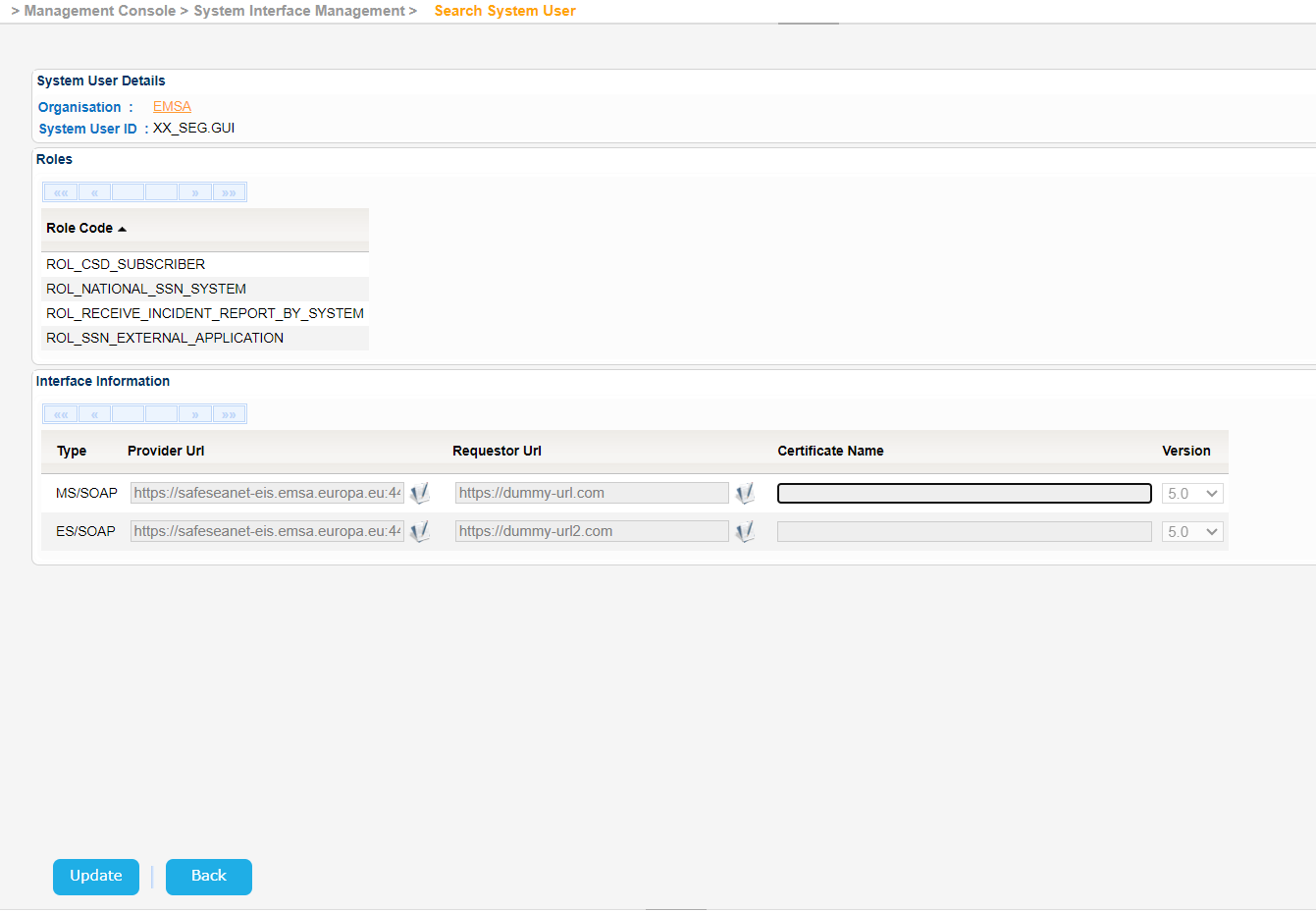
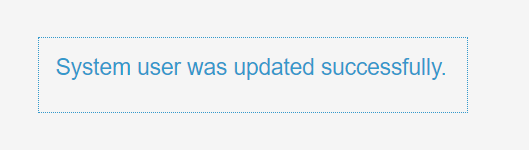
Provided that the values are properly set, the system will store the updated System User in the database and present the relevant message.