-
Created by
 European Dynamics Trans Contractor, last updated on Apr 16, 2026
6 minute read
European Dynamics Trans Contractor, last updated on Apr 16, 2026
6 minute read
Navigate to Find Information > Integrated ship information.
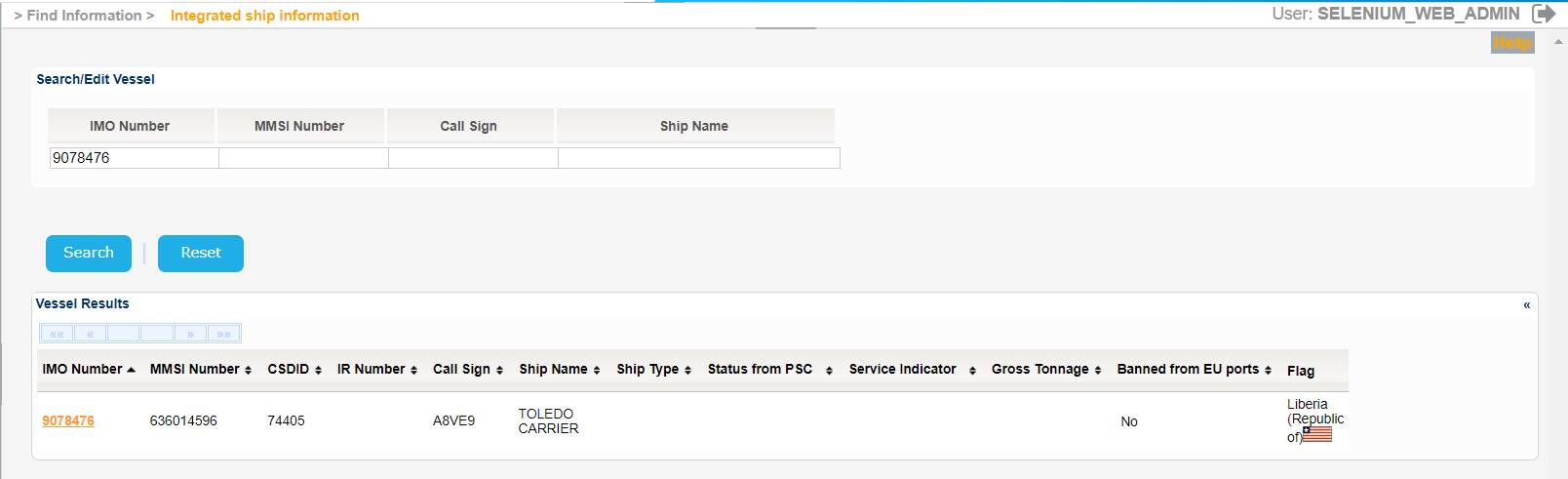
The application will present the Vessel search form.
Fill in at least one of the IMO Number, MMSI Number, Call Sign or Ship Name and click on Search button.
The application will present a list of Vessels that meet the search criteria.
The Service Indicator and Ship Type codes and labels are provided in the attached files:
Select one of the Vessels and click on the IMO Number link.
The application will present a new screen which includes the Vessel Identification section of the selected Vessel and also the following ones:
- Voyages
- The Active Voyage - presents the voyage on-going or at port
- List of Planned Voyages - presents up to 5 voyages in the future
- List of Previous Voyages - presents up to 10 voyages concluded
- Exemptions (active exemptions applicable to the ship)
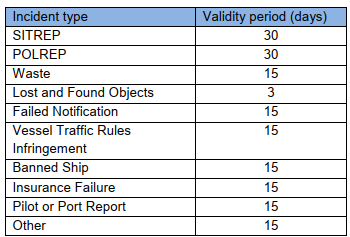
- Incident Reports (active Incidents according to Incident Report Guidelines table with validity period)
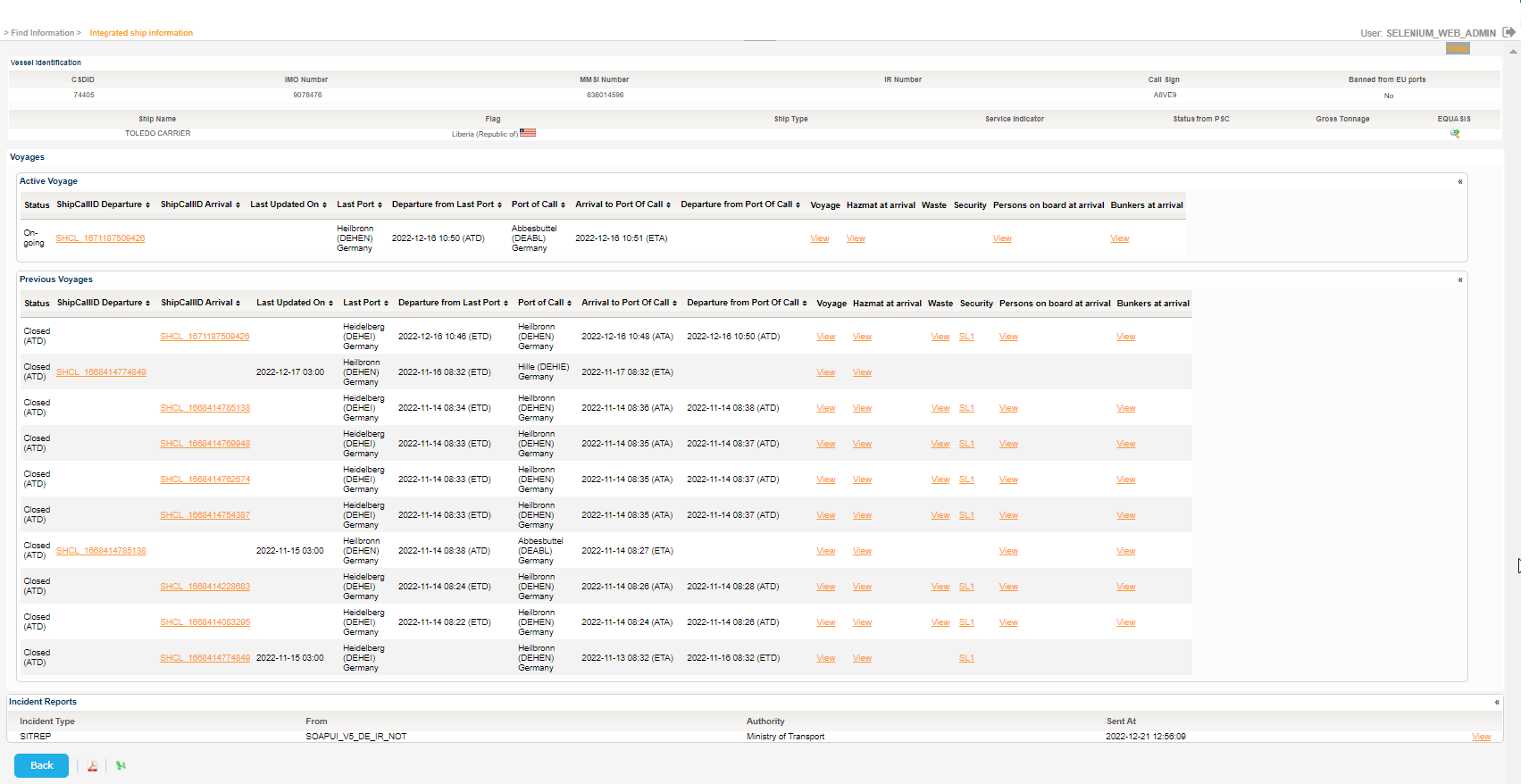
In case the Vessel is associated with a "Port Reception Facilities Inspection Report" the relevant section will be presented.
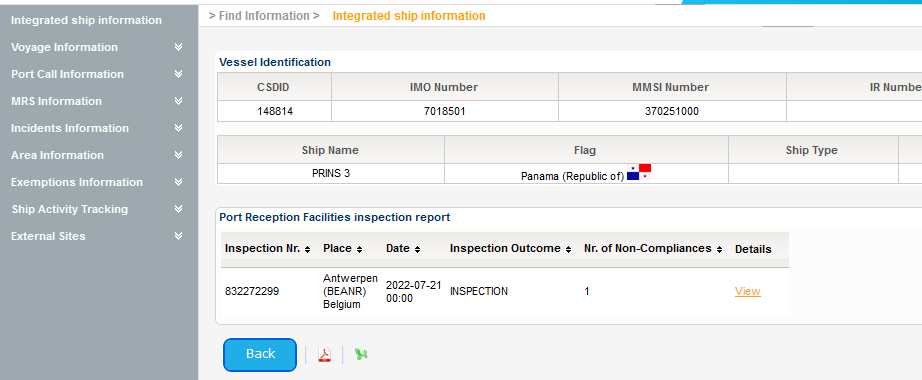
Click on the View link and the system will launch a pop up window with EU Inspection Details:
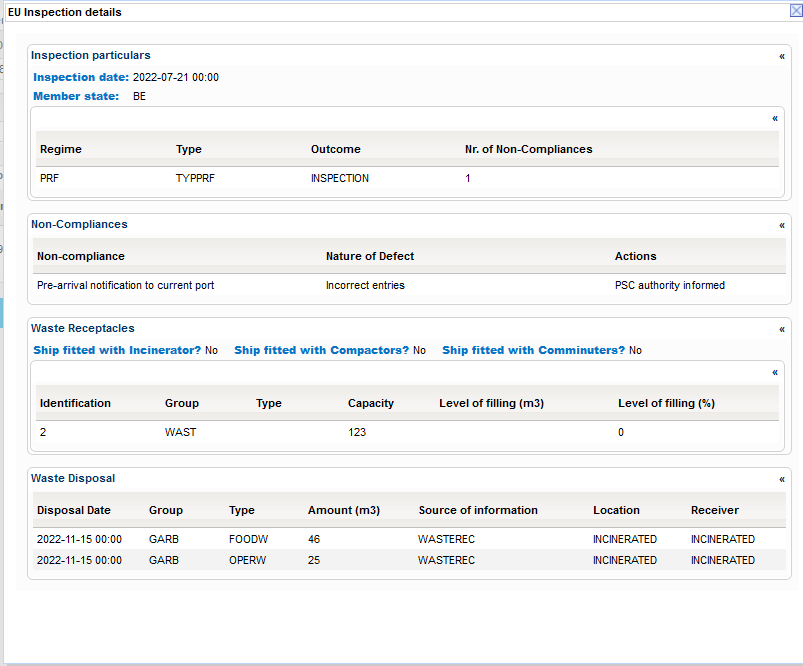
The THETIS PRF codes, received from GetInspectionDetails response, are translated in a human readable text unless there is no relevant association.
The list of codes types which are translated are:
- NonComplianceActionCode (presented in the WUI as Action)
- DefectiveItemCode (presented in the WUI as Non-compliance)
- NatureOfDefectCode (presented in the WUI as Nature of Defect)
Additionally the application caches the mapping between the THETIS codes (Code element of the GetCodes response) and the Natural language description (Description element of the GetCodes response). The cache is refreshed on a daily basis and upon server restart by calling the THETIS GetCodes web service.
Back to the initial workflow of the Vessel with IMO number 9078476, Export the search results in PDF or Excel format by clicking on the respective icon on the bottom left side of the search results table.
Click on the "Get Details" link under Equasis column of the Vessel Identification Section.
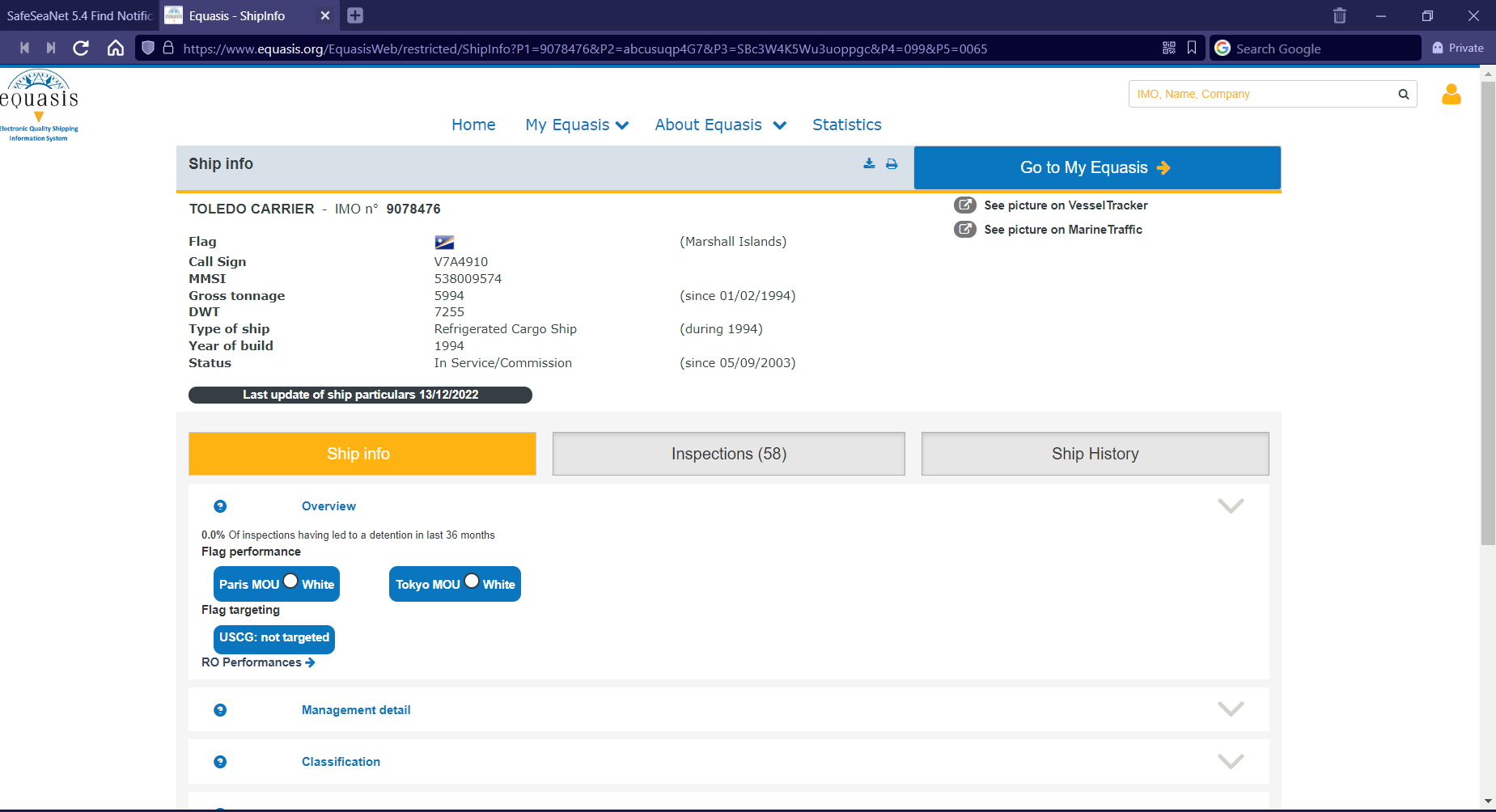
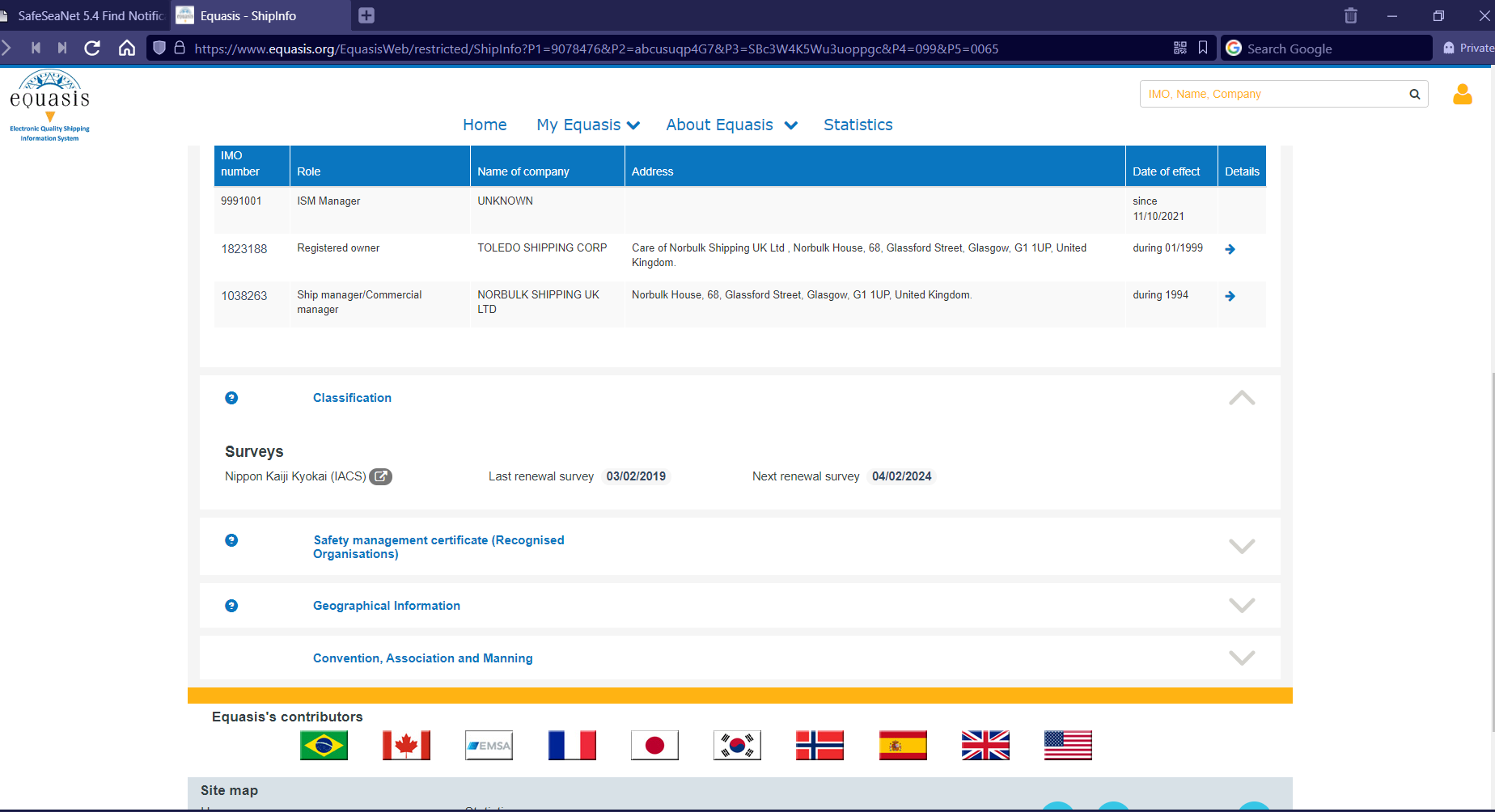
The application will open a new tab to present the details retrieved from Equasis.
In case Equasis takes too long to respond the system will present the following error message:

Otherwise the Equasis tab will look like the following:
Close the Equasis tab and scroll down to the Voyage sections.
Select a Voyage and click on View link, under Voyage column.
The application will present a pop up with the Voyage details:
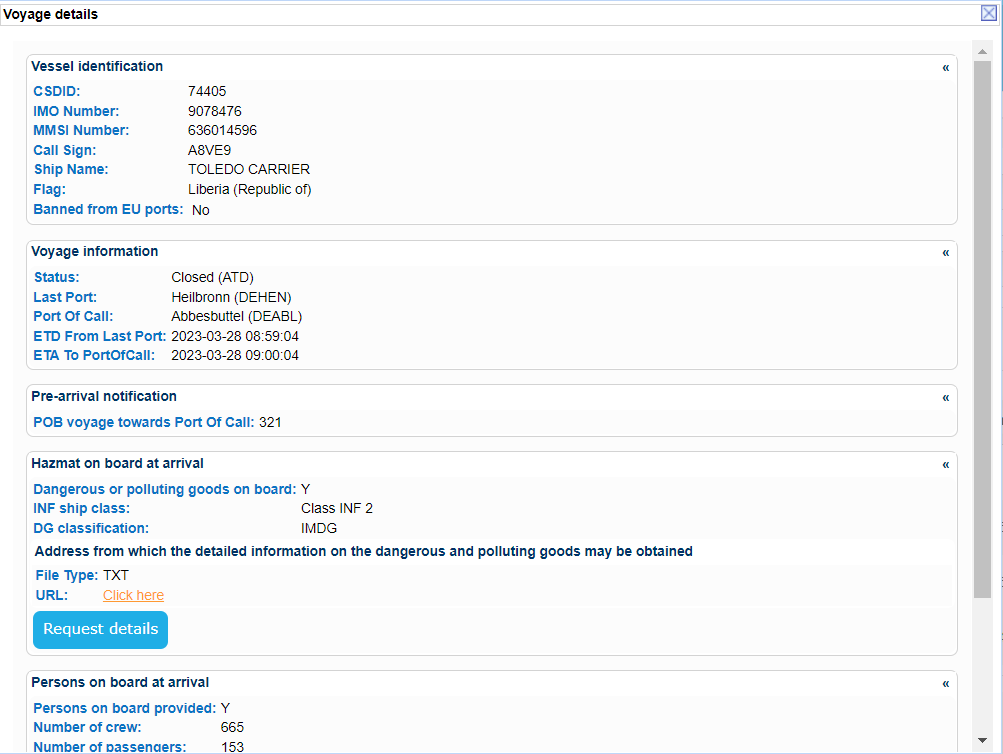
Navigate to Persons on board at arrival and click on Request details button.
A new pop up windows will be launched which will ask for the verification code submitted to your email account.

Open you inbox and find the relevant email sent by EIS.
It should look like the following:
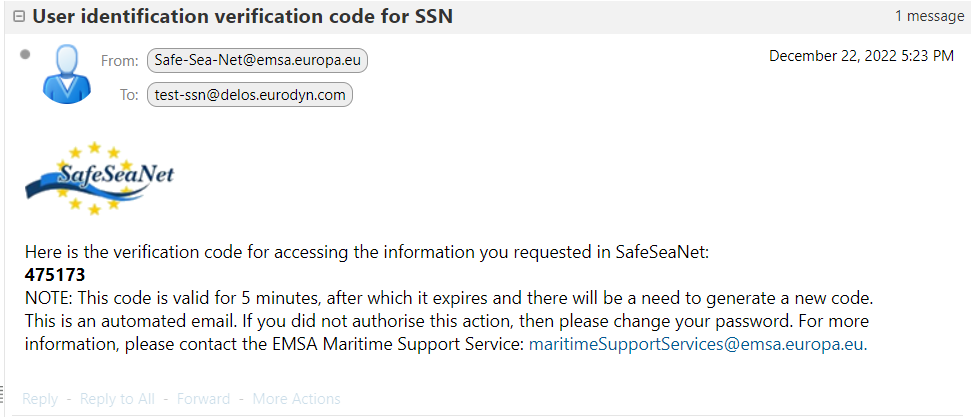
Fill in the six digits verification code in the field and click on Verify button.
Provided that the verification code is valid, the application will provide the following message:
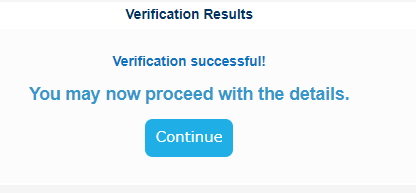
Click on Continue button in order to get a new pop up with the Persons on Board details:
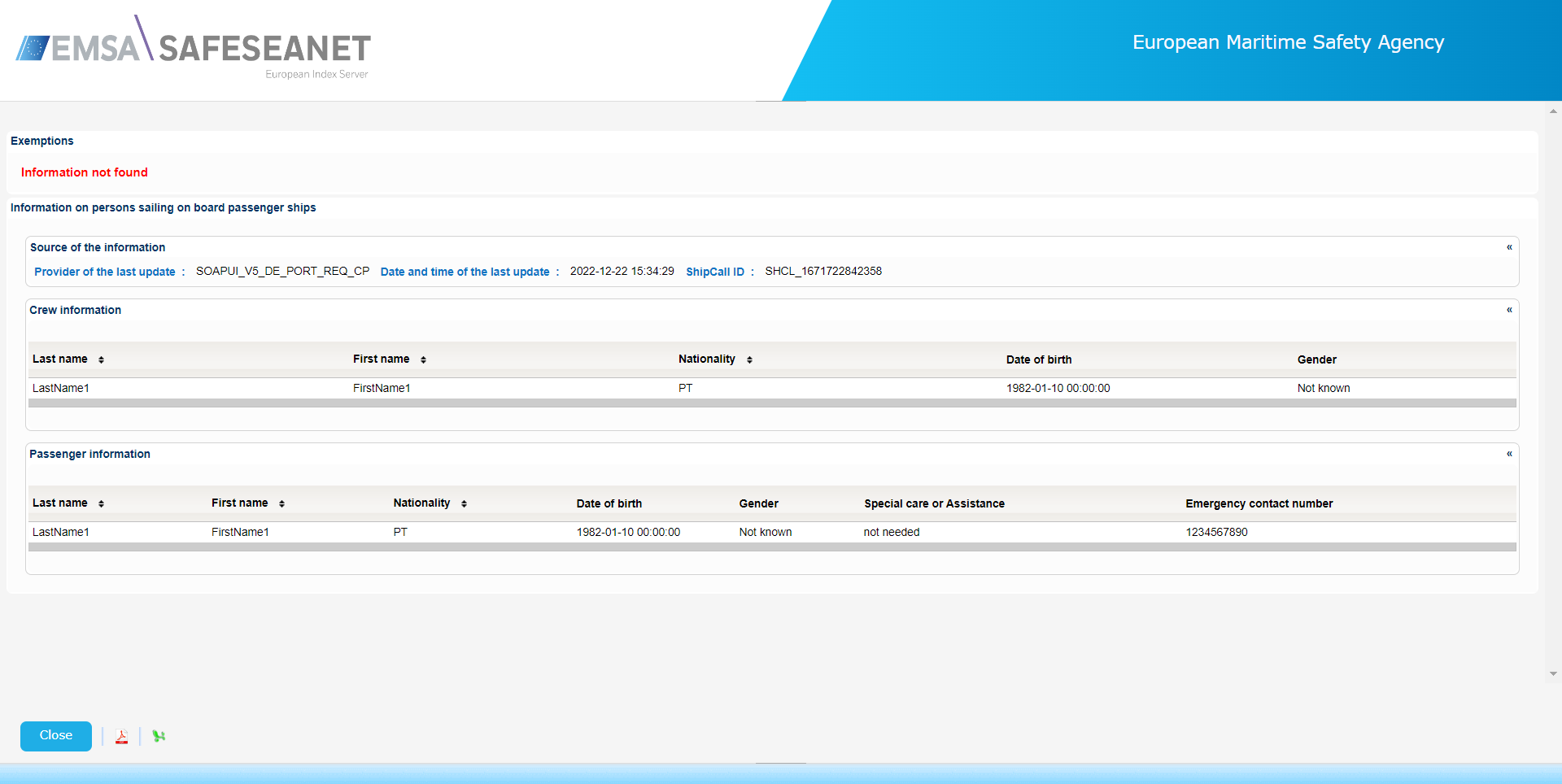
Export the list of Persons on Board in PDF or XML format by clicking on the respective icon on the bottom left side of the presented table.
Close the pop up window select a Voyage and click on the View link under Waste column.
The application will prese a new pop up window with the Waste Details:
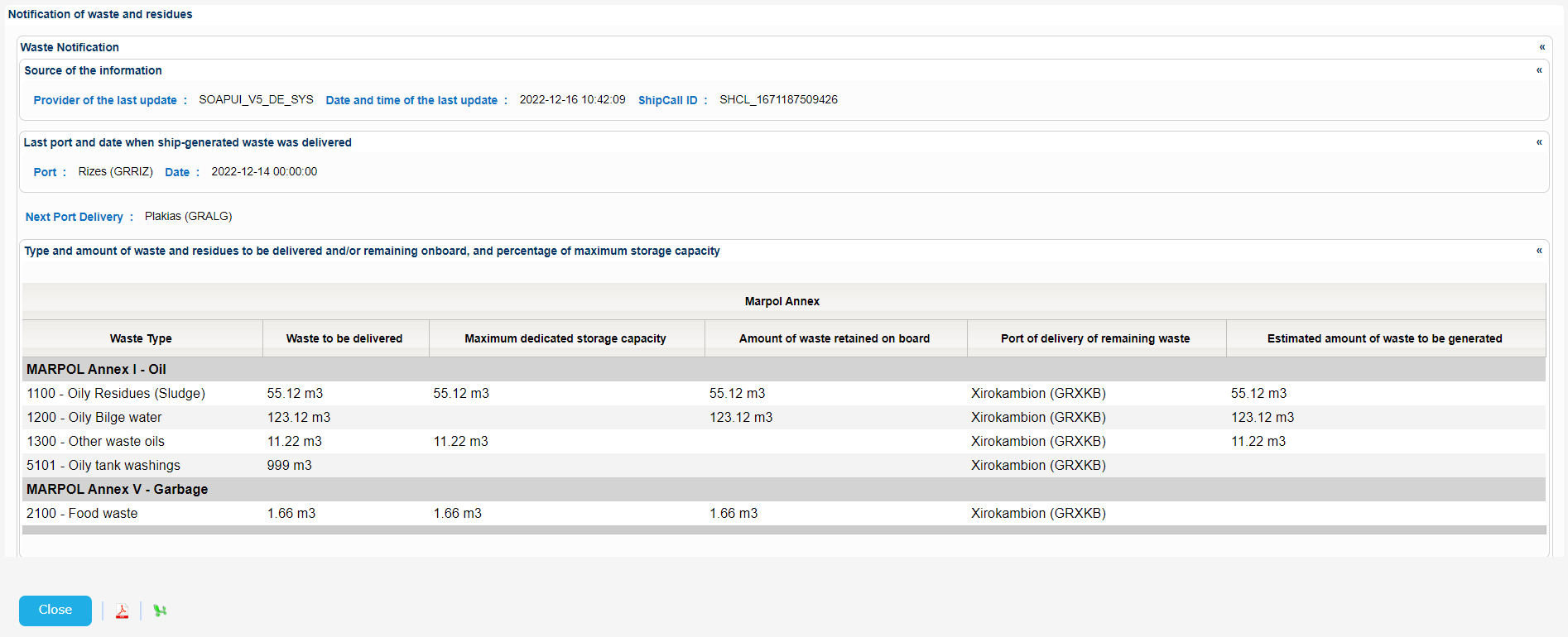
Export the search results in PDF or XML format by clicking on the respective icon on the bottom left side of the search results table.
Close the pop up and click on View link under Security and Bunker columns in order to get the respective details in the relevant pop ups.
Close those pop ups as well and scroll down to the Incident Report Info section, select an Incident Report and click on View link.
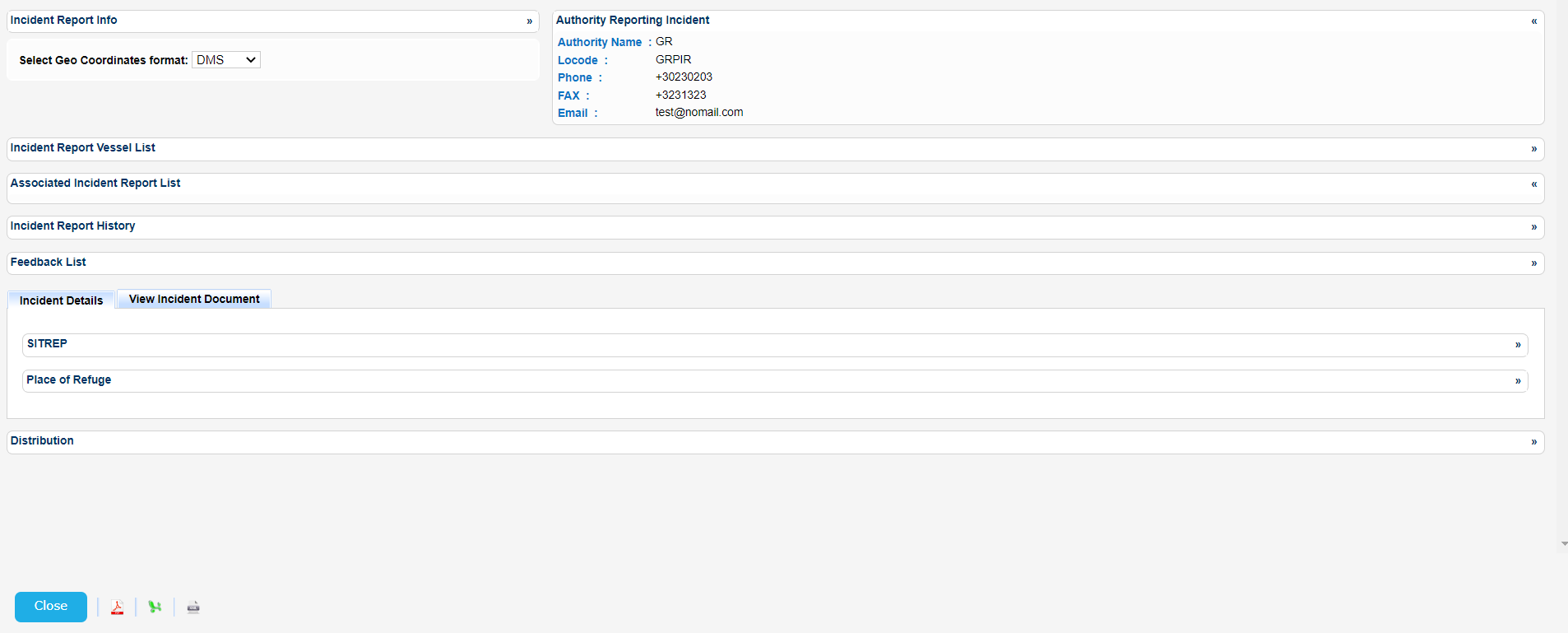
A new pop up window will be launched to present the details for the selected Incident Report organized in the following sections:
- Incident Report Info
- Authority Reporting Incident
- Incident Report Vessel List
- Associated Incident Report List
- Incident Report History
- Feedback List
- Incident Details and
- Distribution List
Expand or collapse the relevant section to view further details:
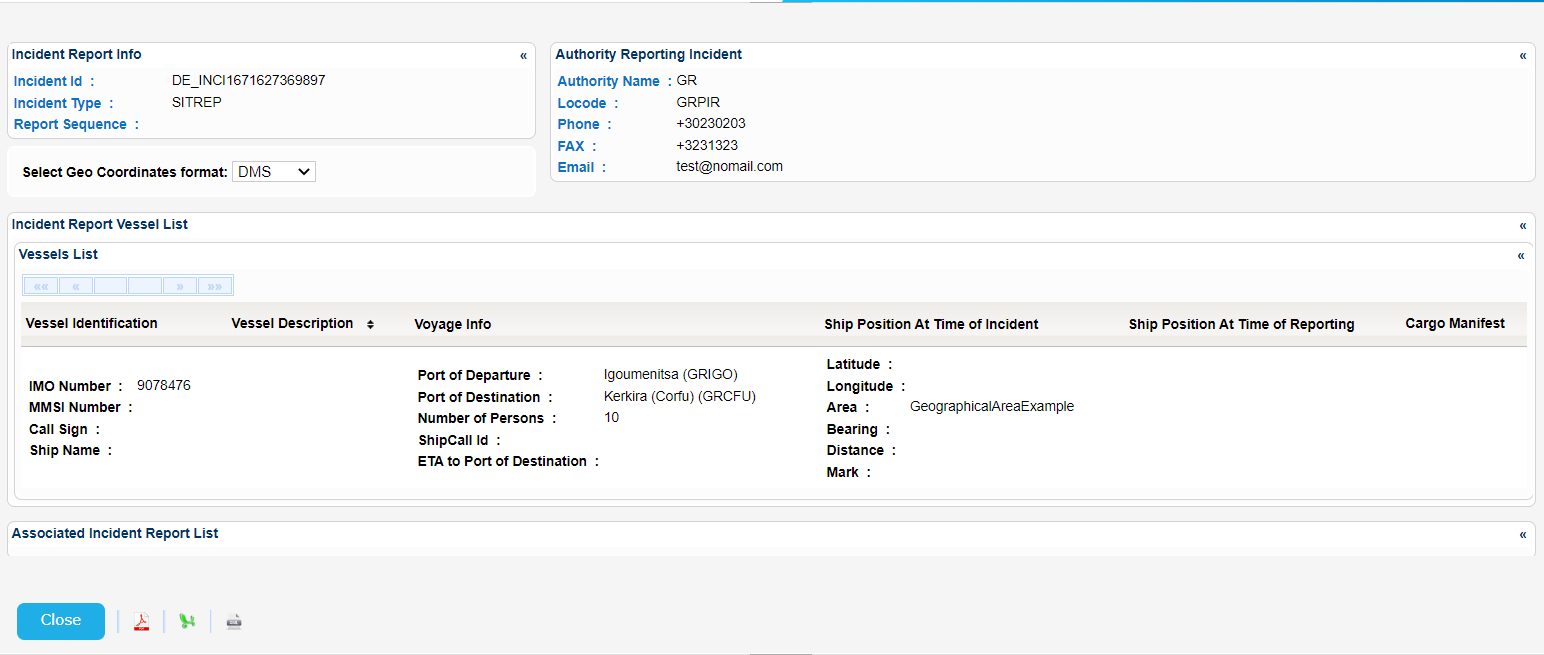
Export the search results in PDF, Excel XML format by clicking on the respective icon on the bottom left side of the table.
 3.3.1 IncidentReport-22_12_27.xml
An Incident is considered active (i.e. included in the response to the enrichment incident operation request) at the time of the request, if the time of the request is not greater than the sum of the sentAt of the respective Incident and the validity period for the type of Incident according to the table below (i.e. an incident remains active for a period equal to its validity after the sentAt date):
| Incident type | Validity period (days) |
|---|---|
| Waste | 15 |
| POLREP | 30 |
| SITREP | 30 |
| Lost and Found Objects | 3 |
| Failed Notifications | 15 |
| Vessel Traffic Rules Infringement | 15 |
| Banned ship alert | 15 |
| Insurance Failure | 15 |
| Pilot or Port Report | 15 |
| Other | 15 |
The above table is applicable to both v4 and v5 APIs.
Close the pop up and scroll down to the MRS Report section.
Select an MRS Report and click on View link under Details column.
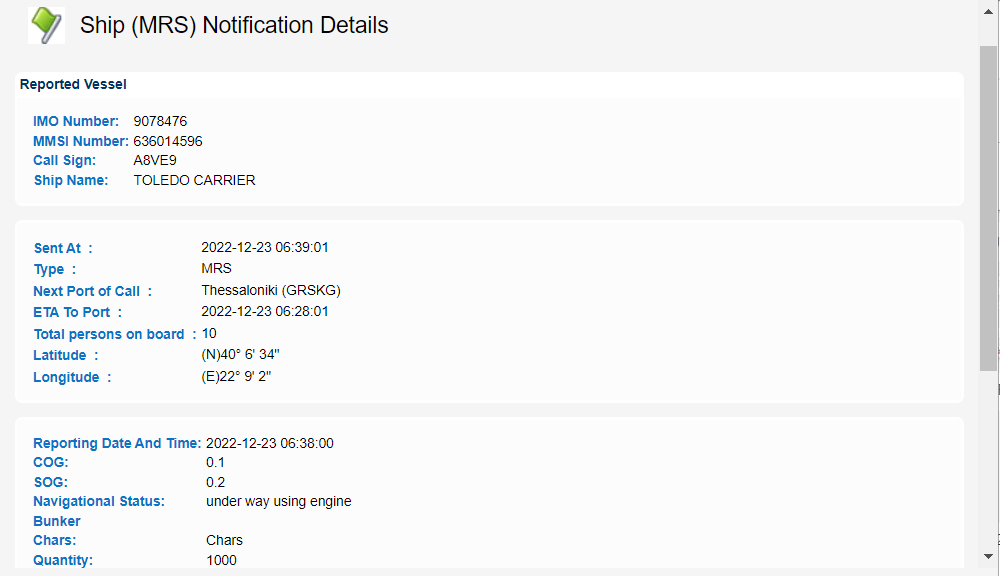
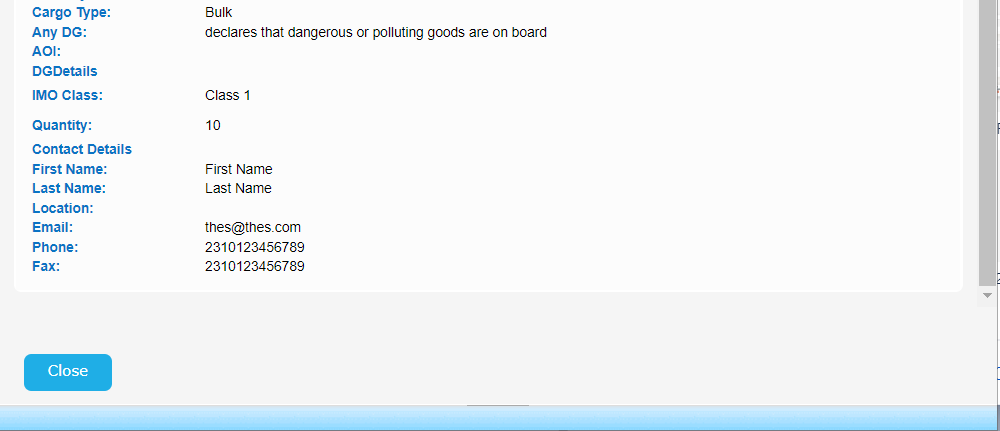
A new pop up window will be launched to present the MRS details: