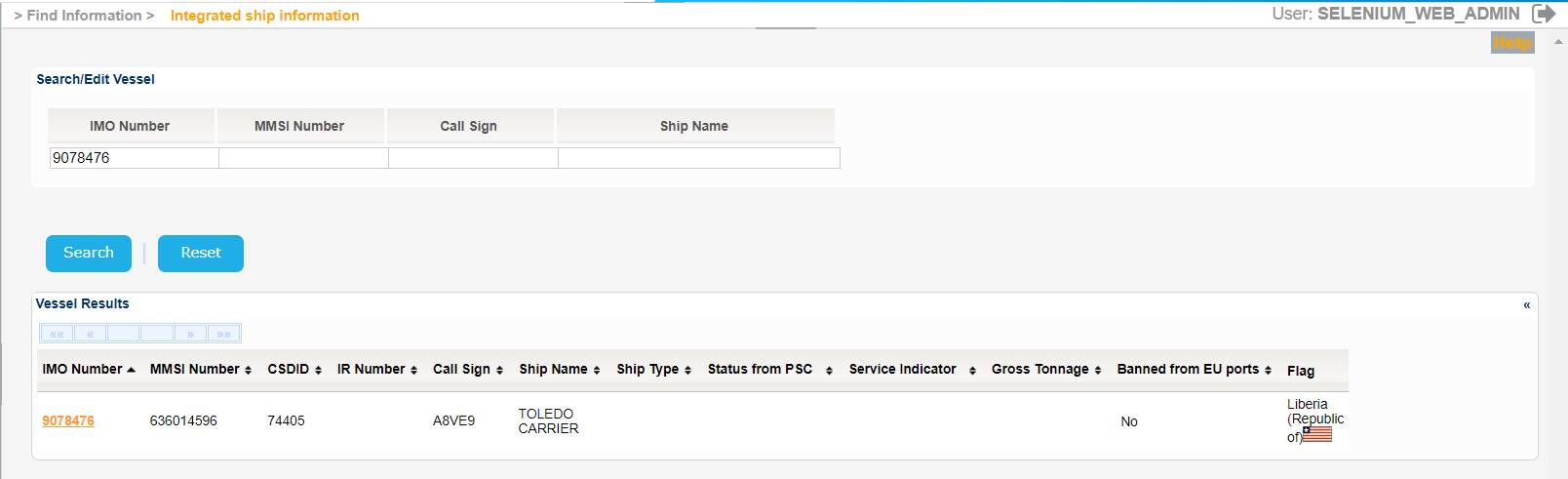
Navigate to Find Information > Integrated ship information.
The application will present the Vessel search form.
Fill in at least one of the IMO Number, MMSI Number, Call Sign or Ship Name and click on Search button.
The application will present a list of Vessels that meet the search criteria.
Select one of the Vessels and click on the IMO Number link.
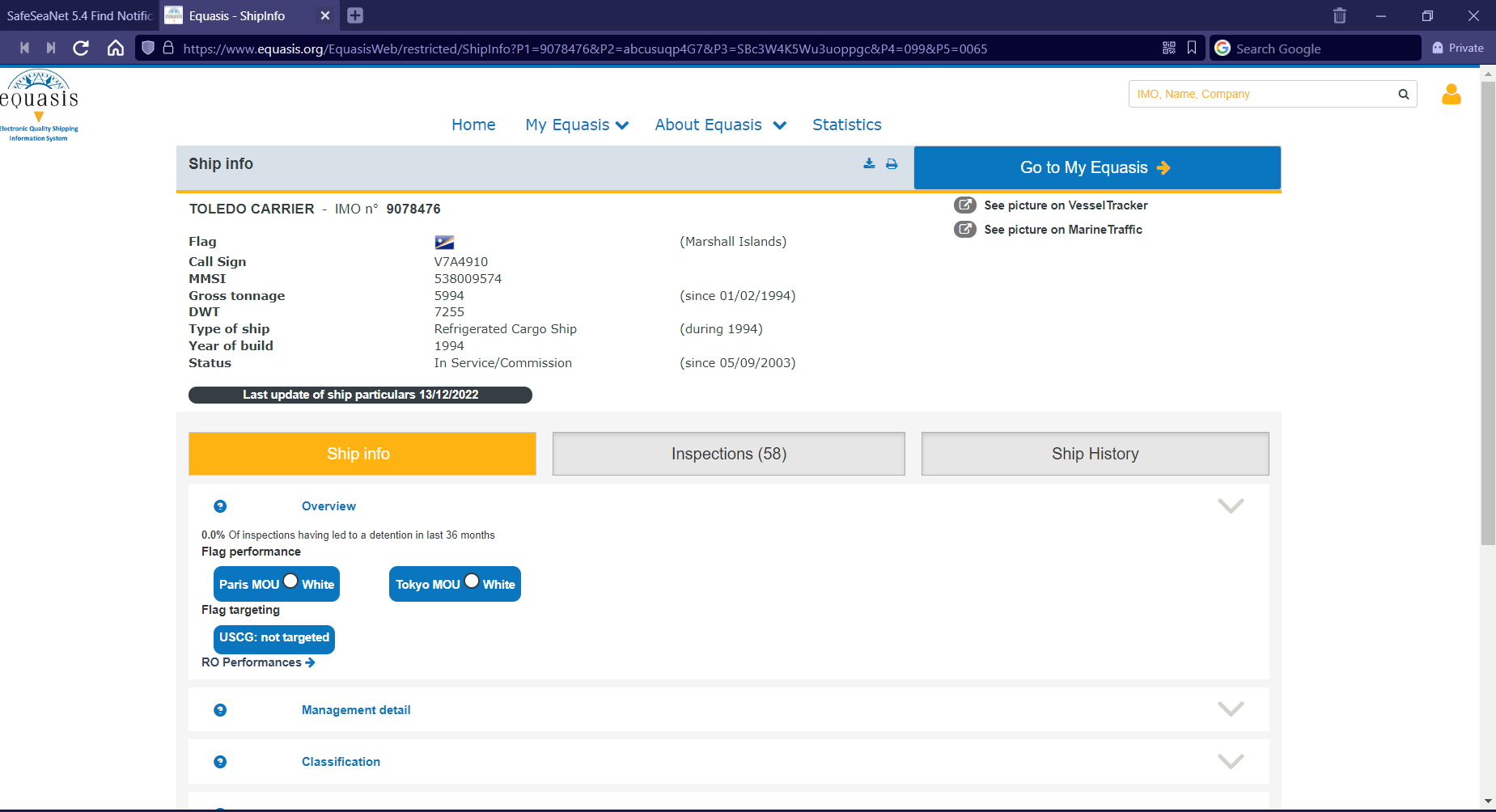
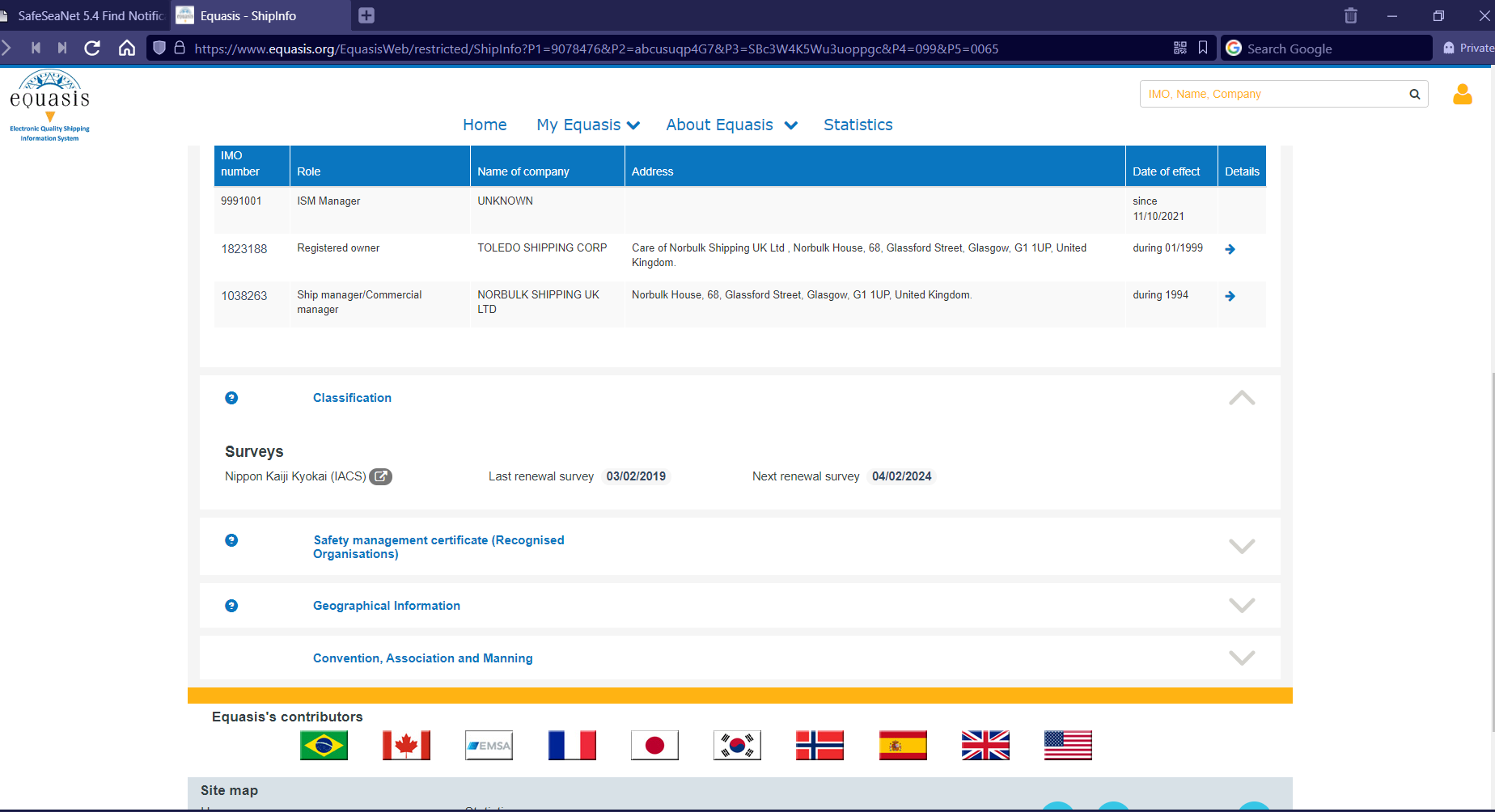
The application will present a new screen which includes the Vessel Identification section of the selected Vessel and also the following ones:
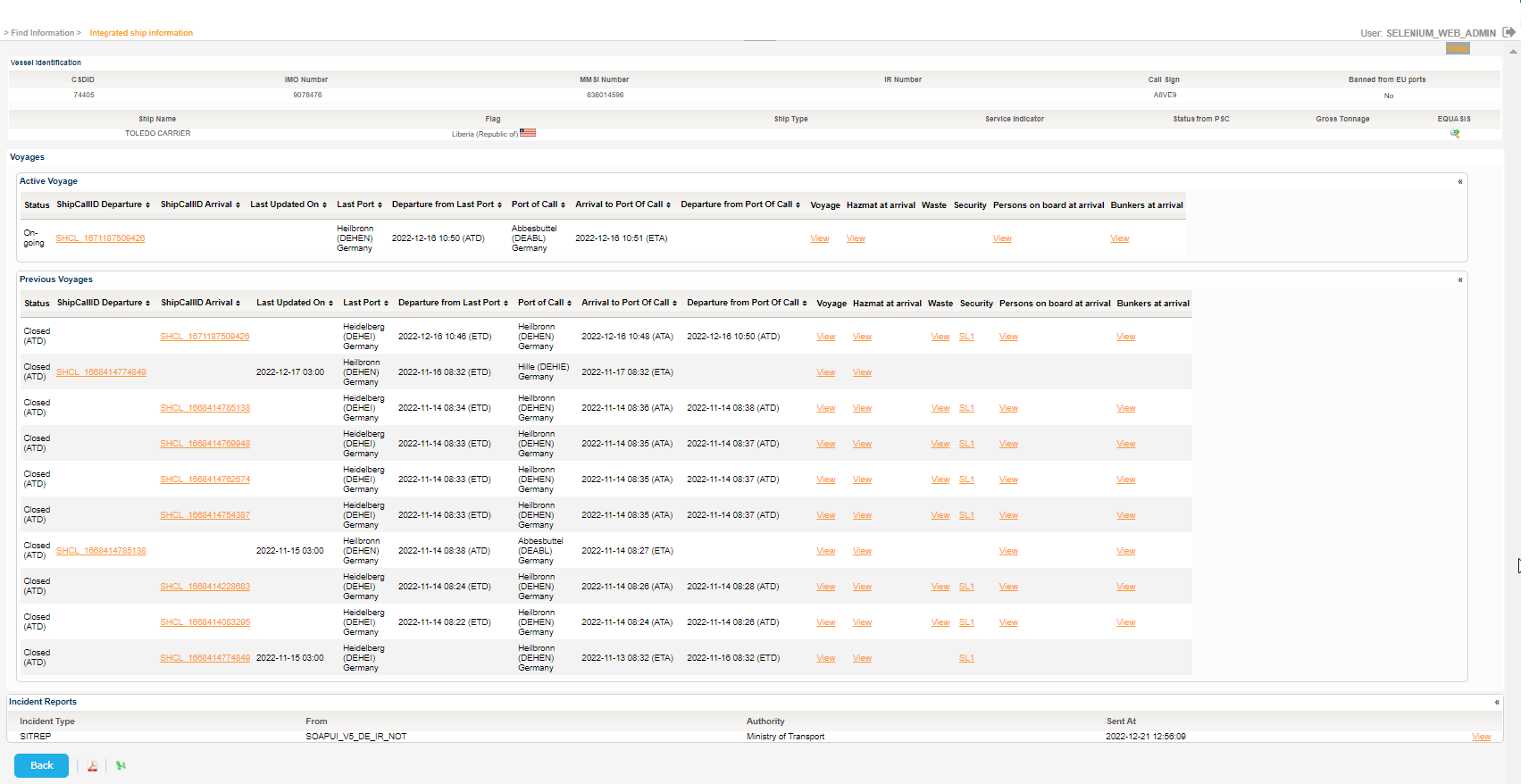
Export the search results in PDF or Excel format by clicking on the respective icon on the bottom left side of the search results table.
Select a Voyage and click on View link, under Voyage column.
The application will present a pop up with the Voyage details:
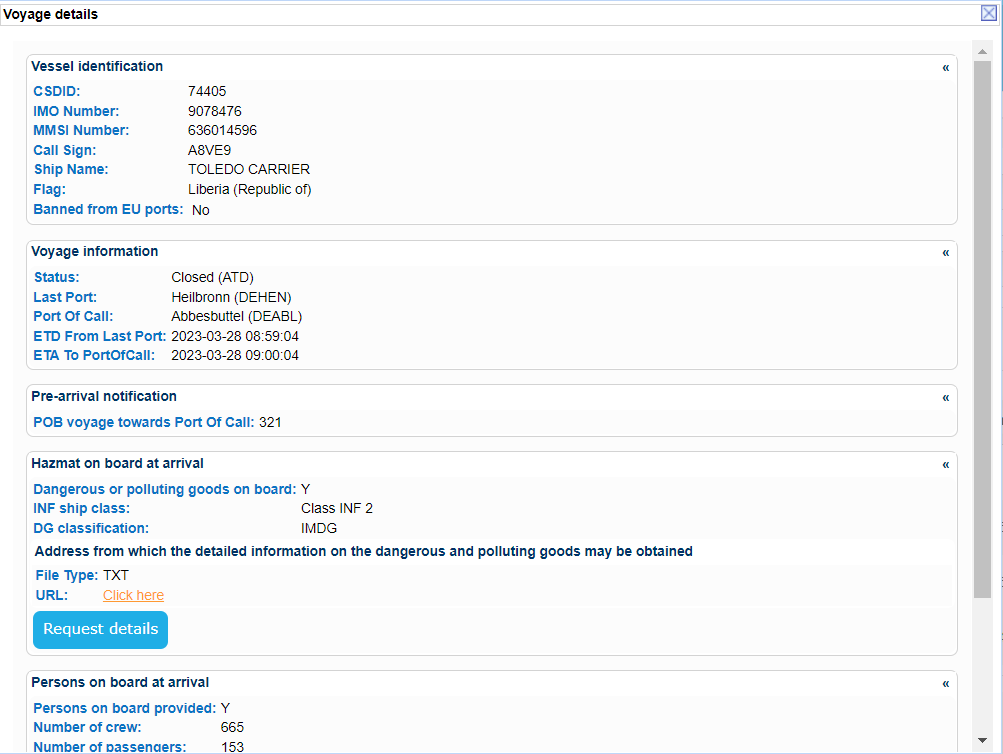
Navigate to Persons on board at arrival and click on Request details button.
A new pop up windows will be launched which will ask for the verification code submitted to your email account.

Open you inbox and find the relevant email sent by EIS.
It should look like the following:
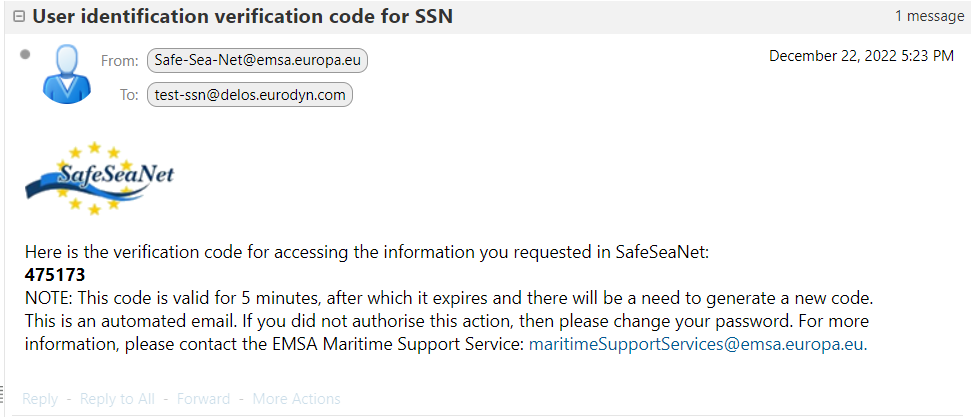
Fill in the six digits verification code in the field and click on Verify button.
Provided that the verification code is valid, the application will provide the following message:
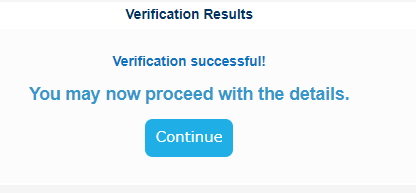
Click on Continue button in order to get a new pop up with the Persons on Board details:
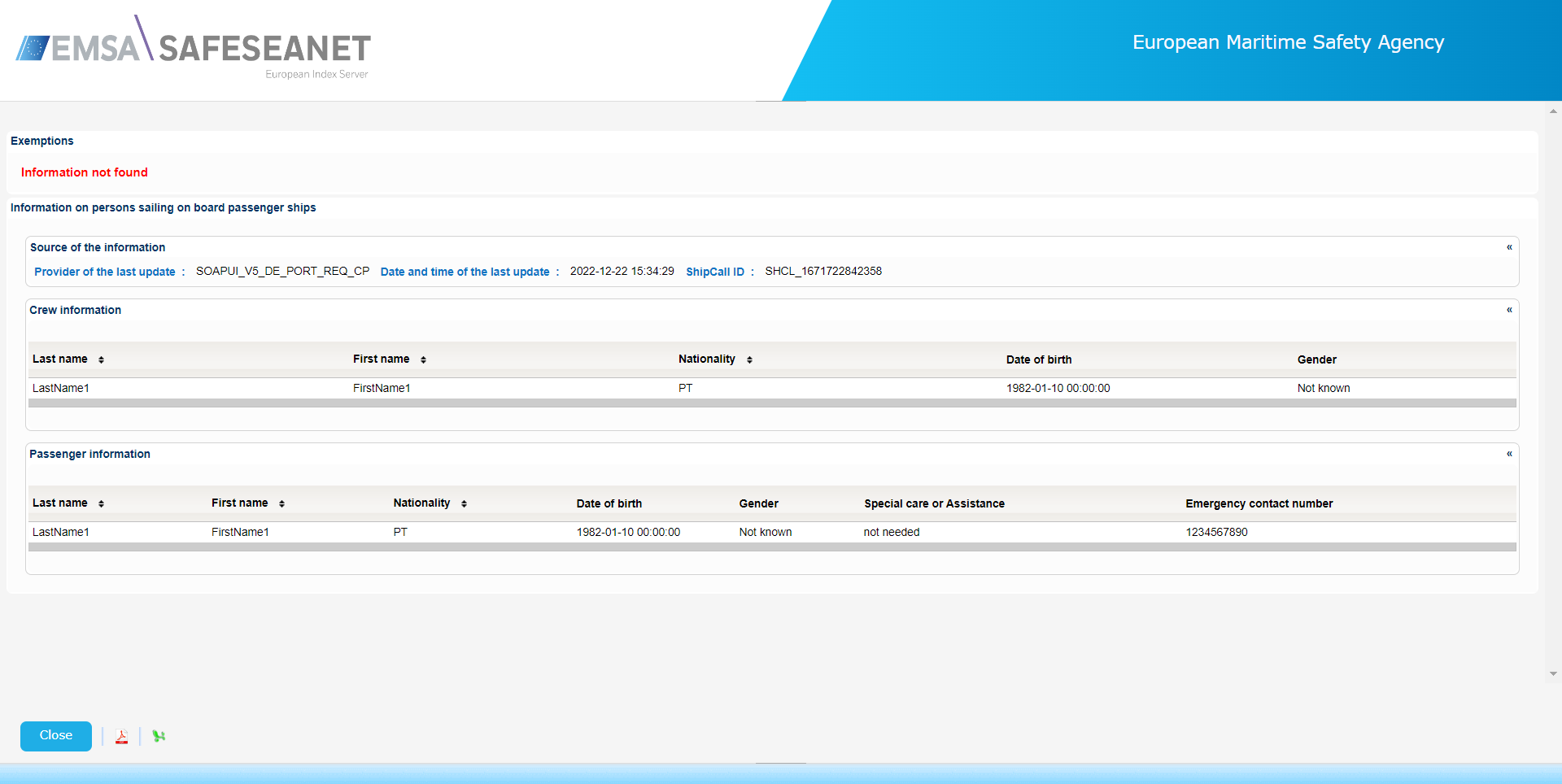
Export the list of Persons on Board in PDF or XML format by clicking on the respective icon on the bottom left side of the presented table.
Close the pop up window select a Voyage and click on the View link under Waste column.
The application will prese a new pop up window with the Waste Details:
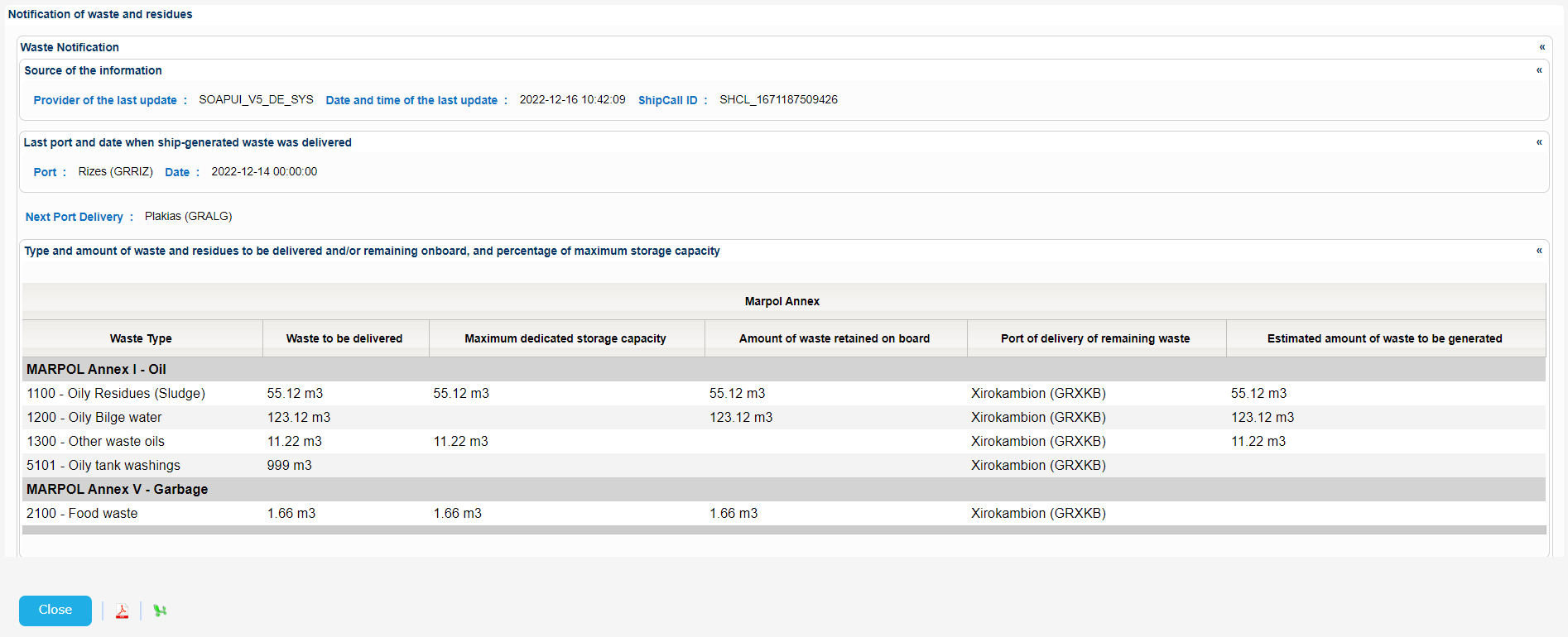
Export the search results in PDF or XML format by clicking on the respective icon on the bottom left side of the search results table.
Close the pop up window and scroll down to the Incident Report Info section, select an Incident Report and click on View link.
A new pop up window will be launched to present the details for the selected Incident Report organized in the following sections:
Expand or collapse the relevant section to view further details:
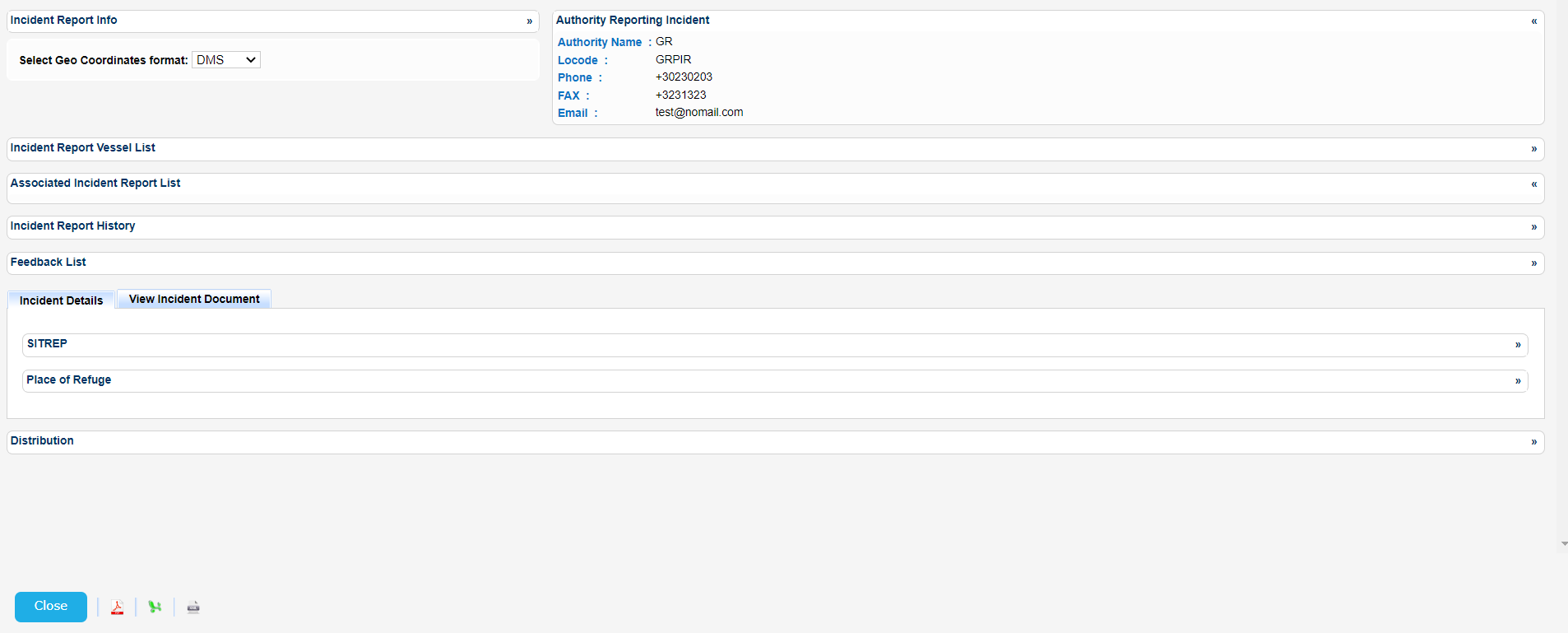
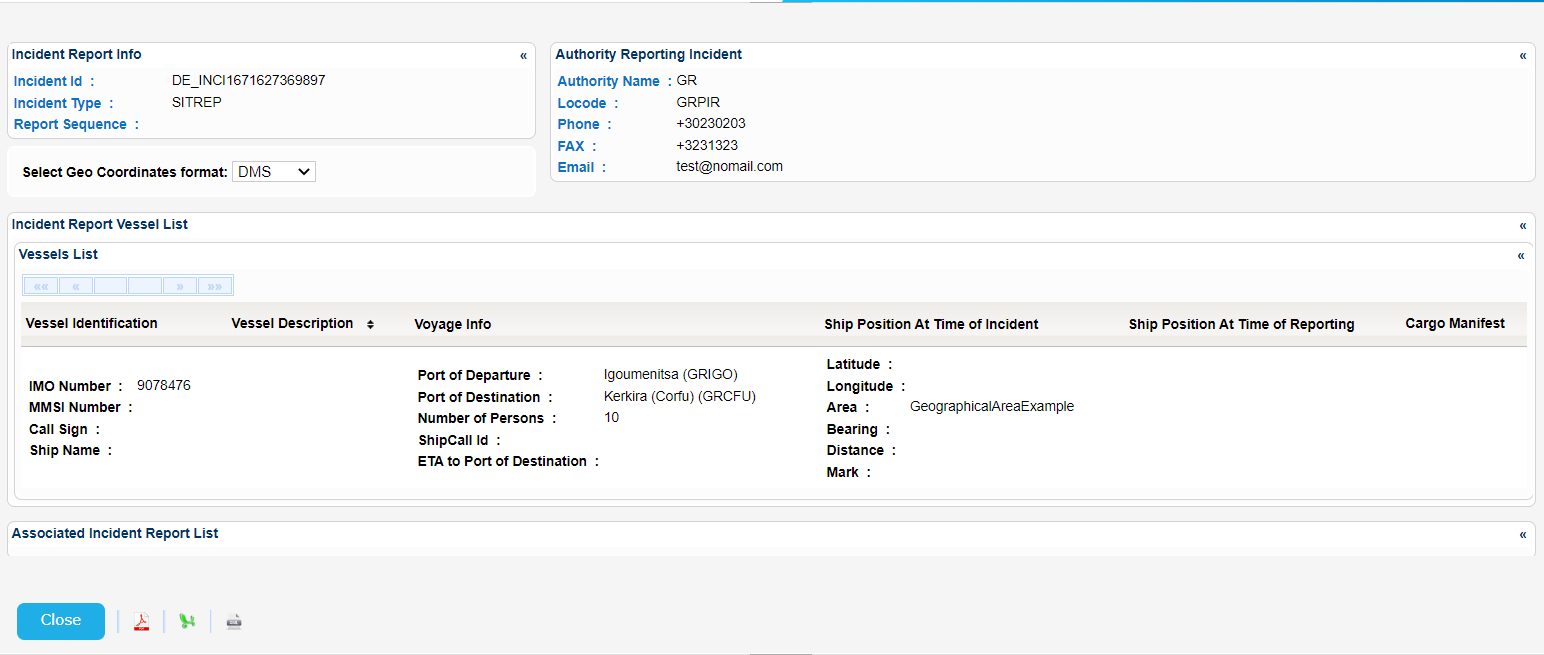
Export the search results in PDF, Excel XML format by clicking on the respective icon on the bottom left side of the table.
Close the pop up and scroll down to the MRS Report section.
Select an MRS Report and click on View link under Details column.
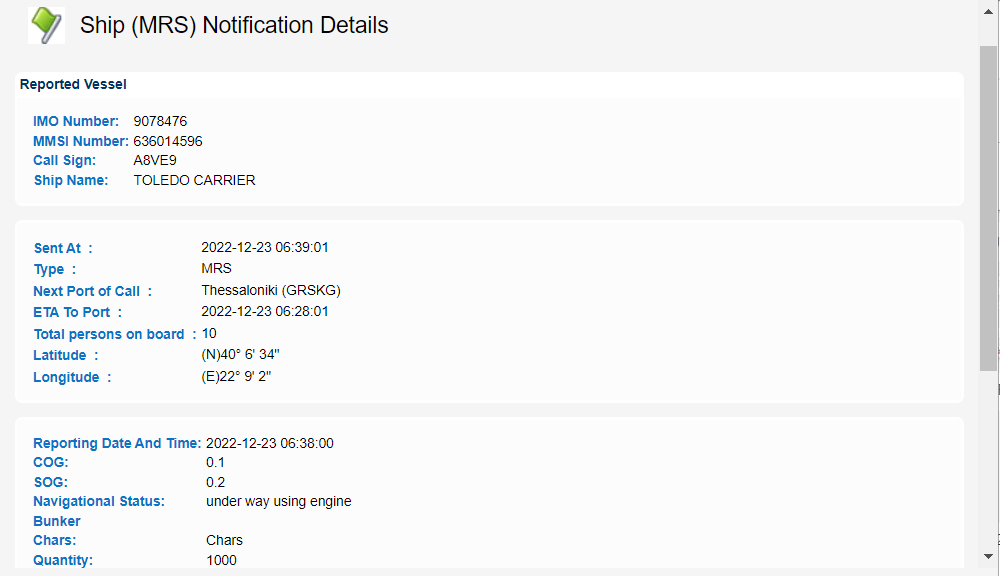
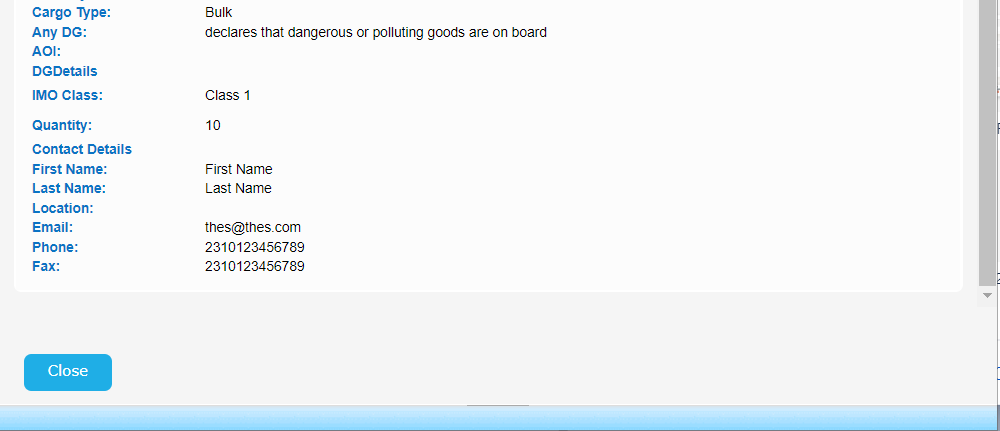
A new pop up window will be launched to present the MRS details: