
Navigate to Statistics Console > Vessels Reporting > OSD Vessels.
The application will present the search Vessel form along with the Last Updated search criterion.
Fill in at least one of the IMO Number, MMSI Number, Call Sign or Ship Name and click on Search button.
The year of the input date field cannot be more than 9999.
The application will present a list of Vessels that meet the search criteria:
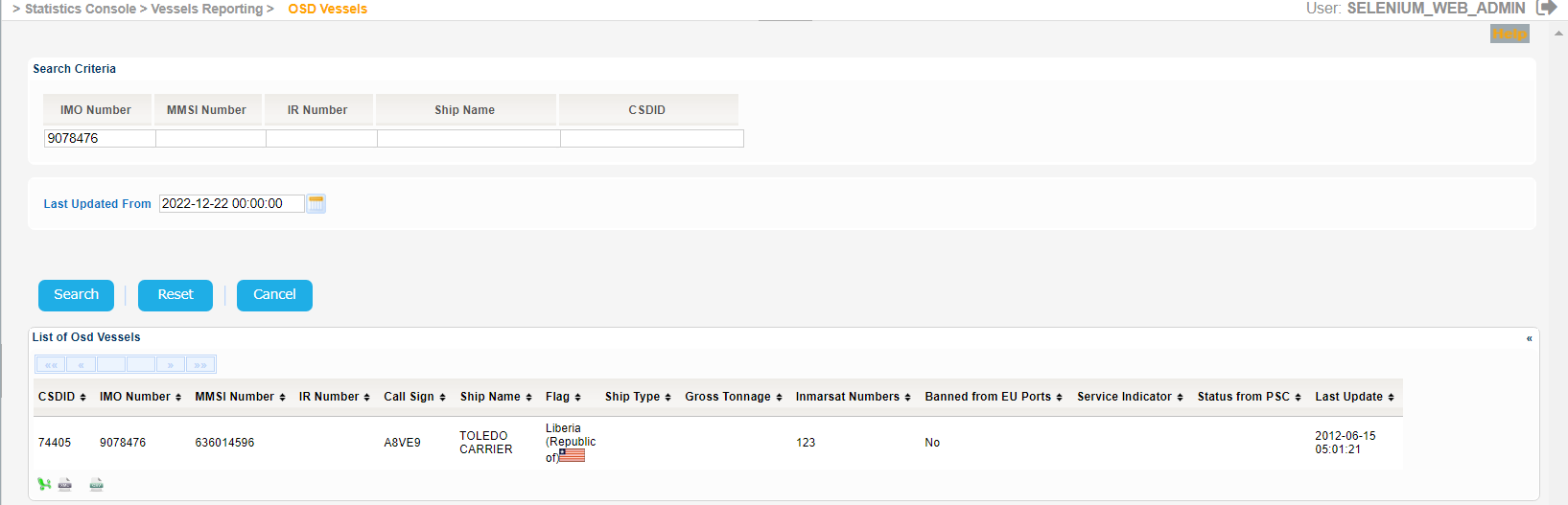
Among the details presented for each vessel there is also the Vessel CSD ID.
When performing the search, the system will provide the ships corresponding to all entered criteria, as follows:
- If "Last update from" is filled-in, ships which date and time of last update is equal or after the date and time of "Last updated from".
- If "IMO number", "MMSI number", "IR number", "Ship name" or "CSDID" is filled in, ships which corresponding attribute contains the entered text string (pattern match at any position).
The resulting list of ships corresponds to all entered search criteria
- If the user enters "princes" in "ship name", ships with ship names such as "ORION PRINCESS", "PRINCESS SANGO" etc. are listed
- If the user enters "26987" in "IMO number", ships with IMO numbers such as "8926987", "9269879" etc. are listed.
The Service Indicator and Ship Type codes and labels are provided in the attached files below:
| View file | ||||
|---|---|---|---|---|
|
| View file | ||||
|---|---|---|---|---|
|
If there is no label corresponding to the value of the attributes Ship type and Service indicator, the system will only display the value between brackets (ex: "(125)").
Similarly if there is no flag icon corresponding to the value of the Flag attribute, no flag icon will be displayed.
Export the search results in Excel, XML, CSV format by clicking on the respective icon on the bottom left side of the search results table:
| View file | ||||
|---|---|---|---|---|
|
| View file | ||||
|---|---|---|---|---|
|
| View file | ||||
|---|---|---|---|---|
|
Should you provide no search criteria in the initial search the system will present the following error message:

If on the other hand you do provide search criteria but the search results are more than 200 the system will present the following error message:
