
Navigate to Find Information > Incidents Information > Get Specific IR.
The application presents the following search form which includes the Incindent Id search criterion:
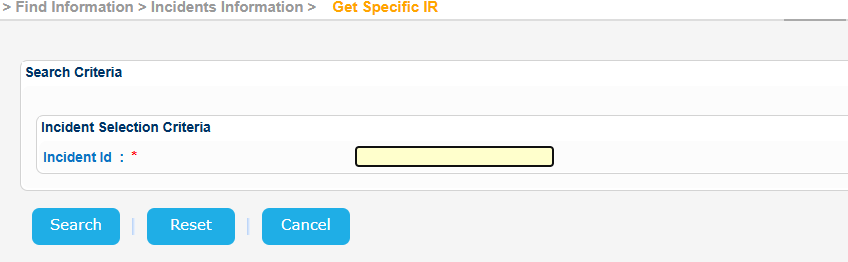
Fill in an Incident Id and click on Search button.
The application will present a list of IR Notification(s) that meet the search criteria:
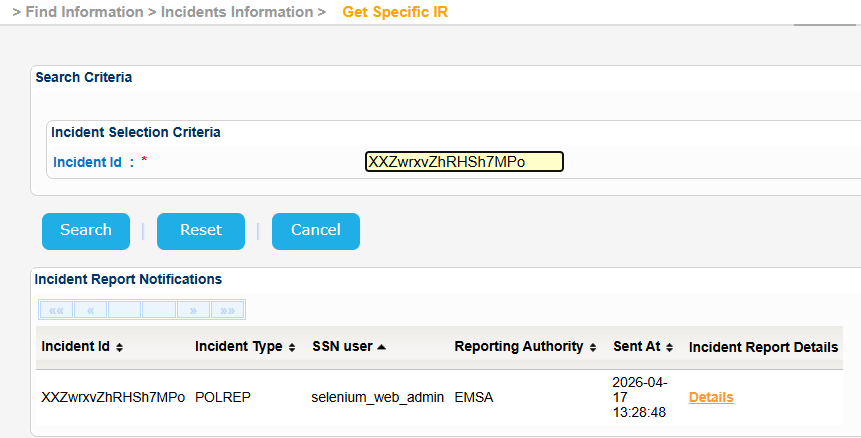
Click on Details link of the Incident Report Details column.
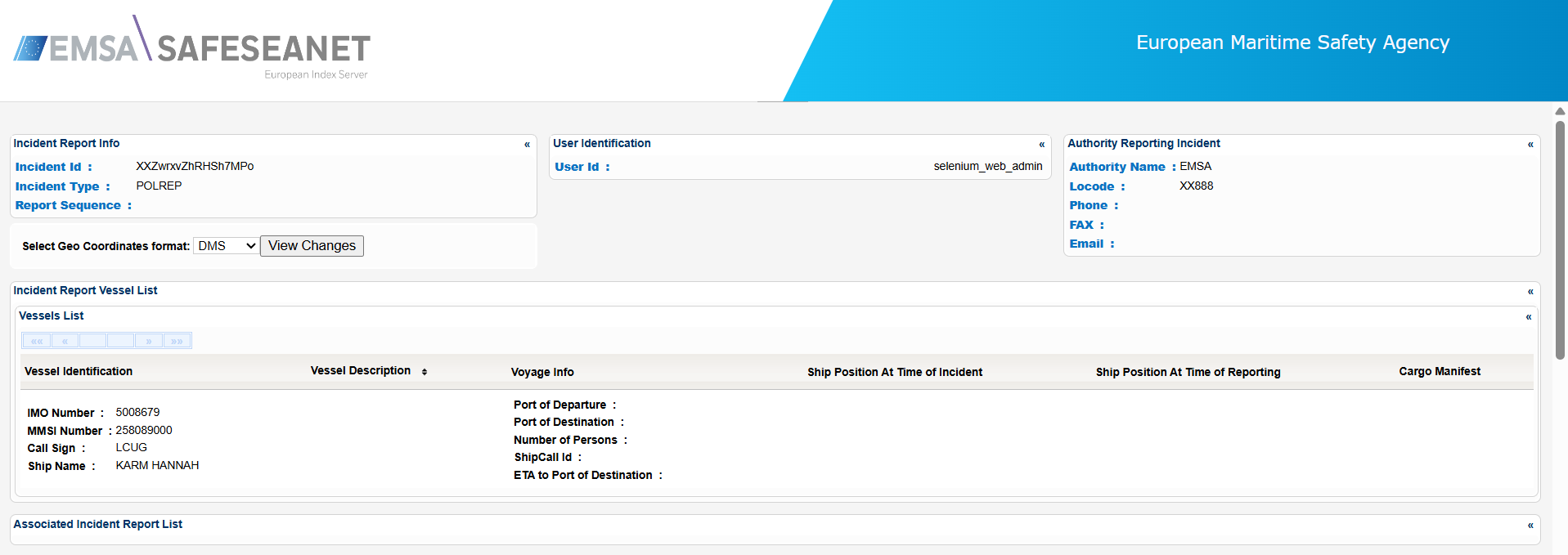
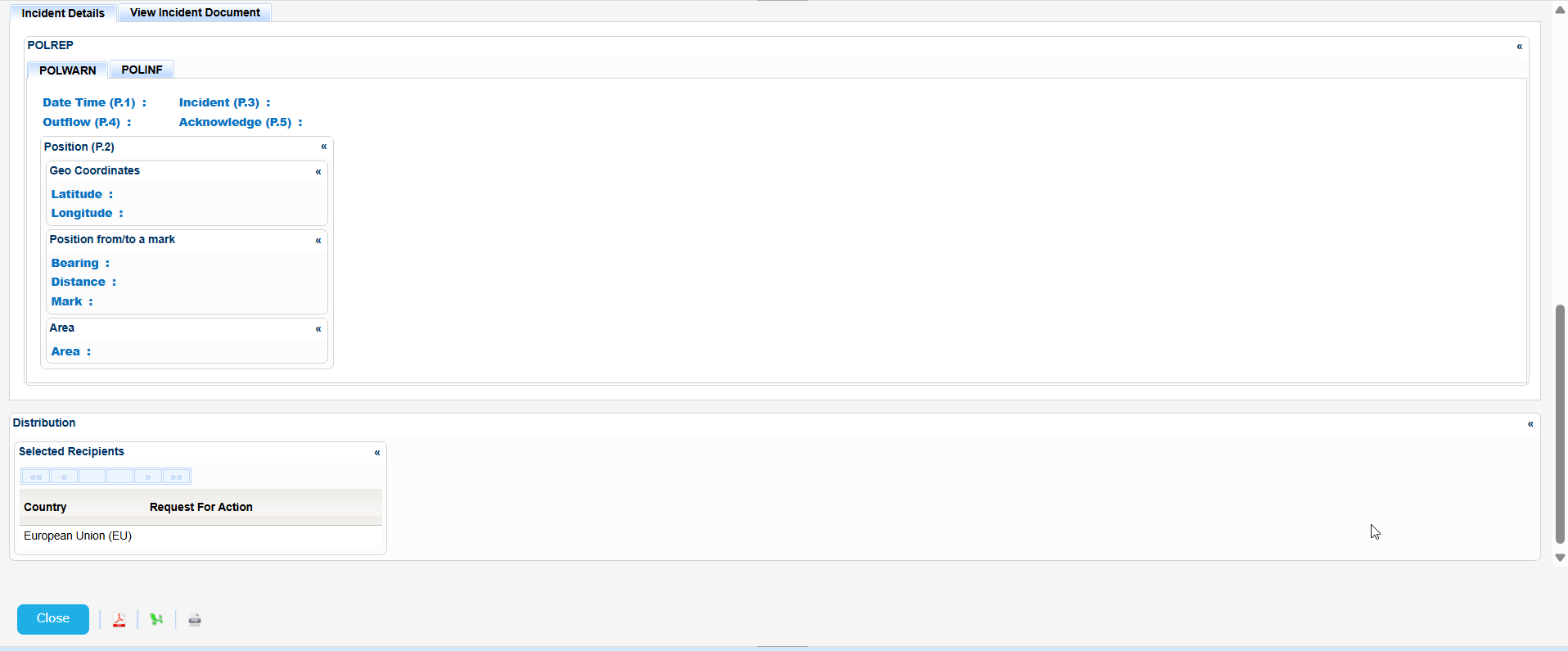
A new pop up window is launched and presents the IR details organized in sub-sections:

| Info |
|---|
For Incident Reports that have been updated in the past the system registers each individual Incident Report message received without overwriting the previous message. |
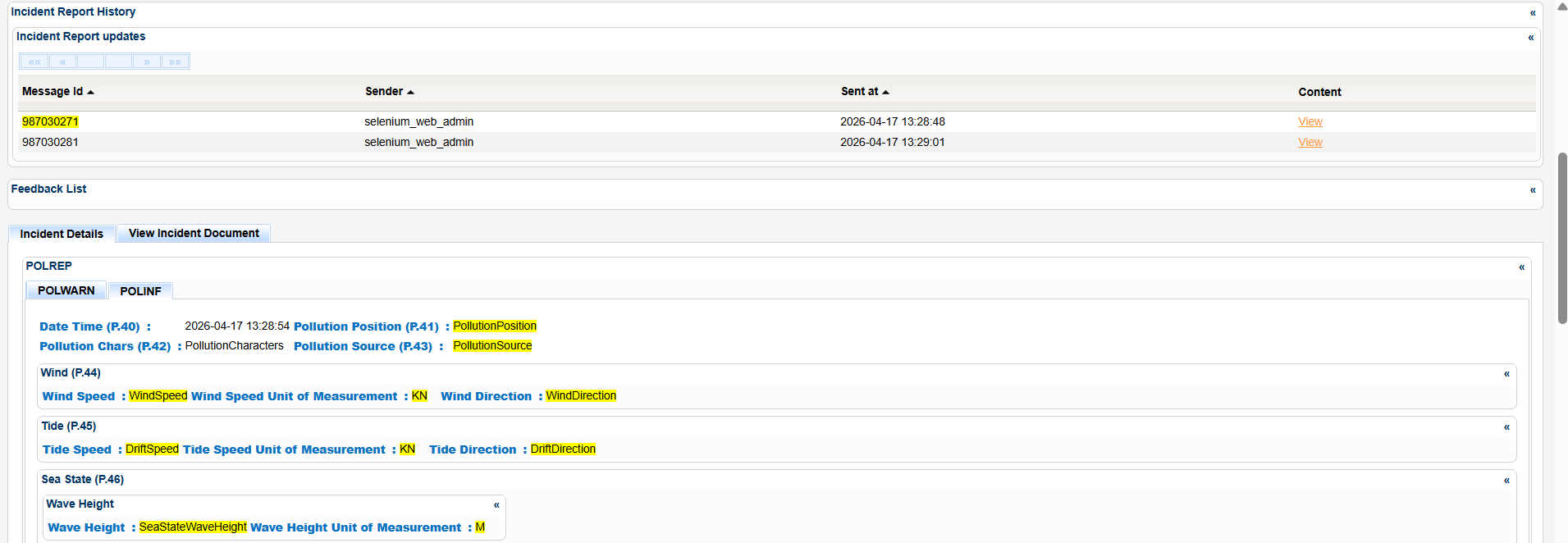
You can view the details of any previous message by selecting a message in Incident Report History section and clicking on its View link .
The application will launch a new pop up with the details.
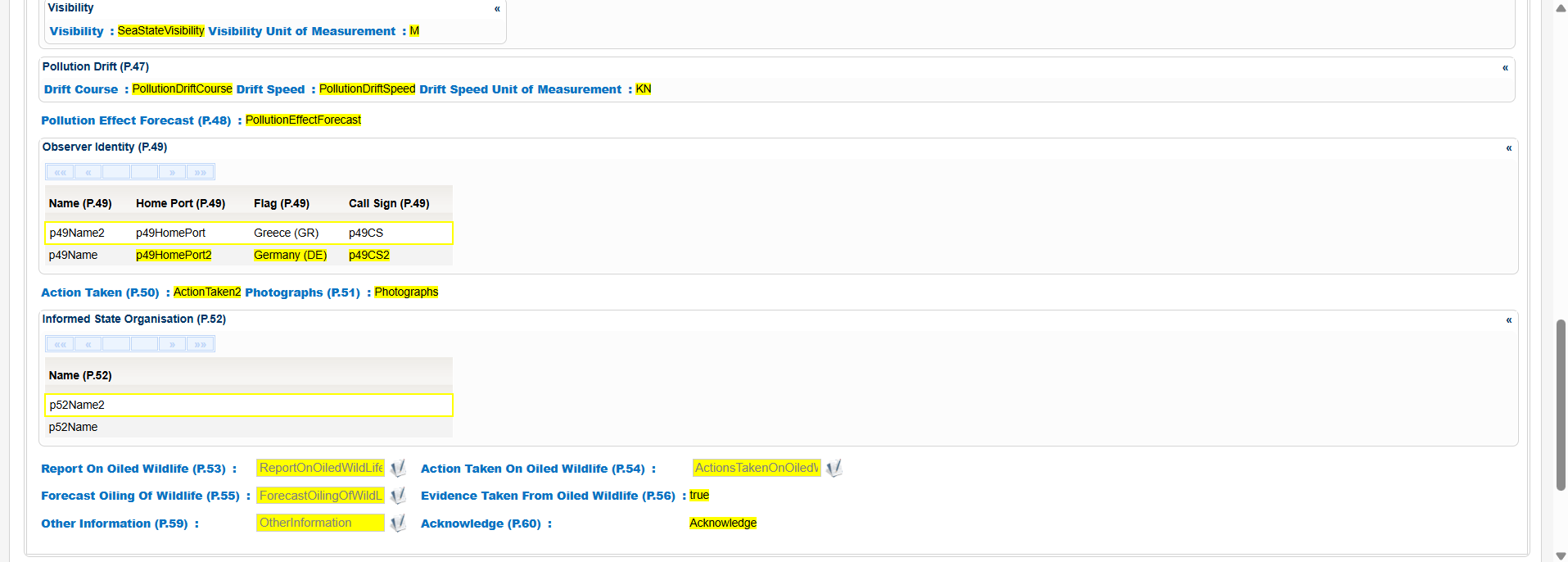
In the same window there is the option to view the changes of the specific version compared to the previous one i.e updated, added or deleted elements.
To do so click on the View Changes button and the system will highlight the elements with changes.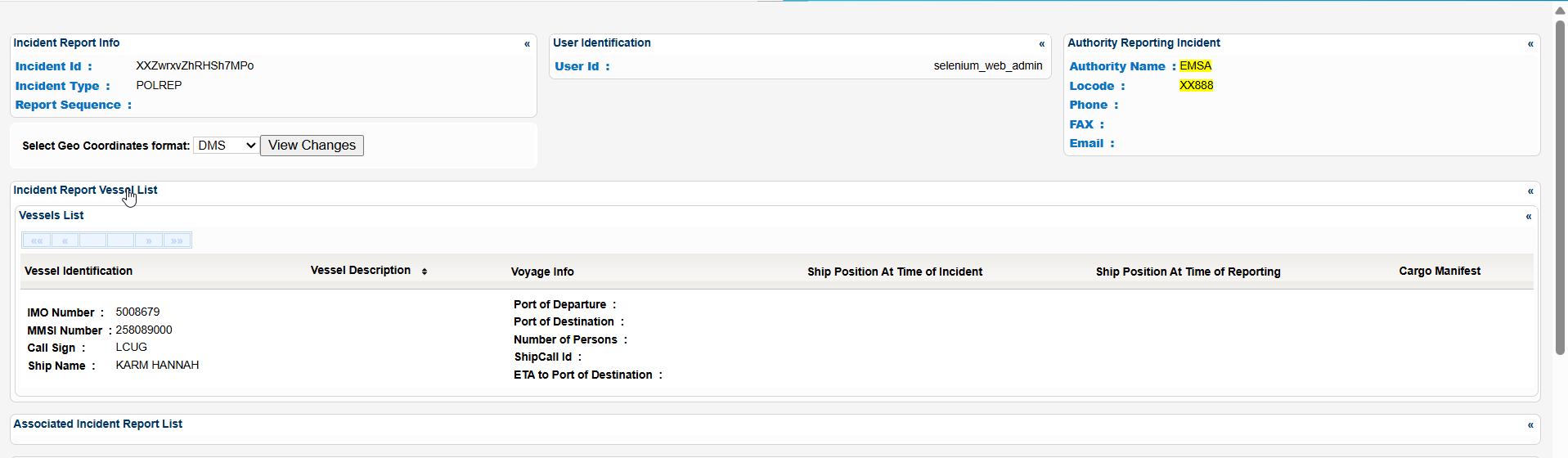
Export the IR details in Excel, XML, CSV format by clicking on the respective icon on the bottom left side of the search results table:pop up window:
| View file | ||||
|---|---|---|---|---|
|
| View file | ||||
|---|---|---|---|---|
|
| View file | ||||
|---|---|---|---|---|
|